
Starter sites
Import a starter site into WordPress, see what it creates, and put your previous theme settings back with a restore point.
Updated
On this page
A starter site is a complete example site: pages, menus, images, and the settings that give it its look. You import it in two separate steps, and you see what each step will do before you confirm it.
- Import the content: pages, menus and images are added to your site. Nothing you already have is overwritten, unless you choose to replace a page.
- Apply the look: colors, fonts, theme options, footer widgets, front page and menu locations change. A restore point is saved first.
You need the InTouchDesign theme active, and the Companion installed. See Getting started.
Find a starter site
Go to InTouchDesign › Starter Sites and open the Starter Sites tab. Every starter site has a card with a picture, its plan (Free or Pro), its category and a short description.
To narrow the list:
- Search: type in the box (“Search by name or sector, e.g. restaurant”). It looks in the name, the description and the category of each starter site. With several words, a starter site must contain all of them.
- Plan: choose All, Free or Pro. The number beside each shows how many starter sites it has.
- Category: choose All categories or one category, for example Business, Health or Food & drink.
The list updates as you type or click, and the line above the cards counts the starter sites shown. If nothing matches, click Show all starter sites to clear the filters.
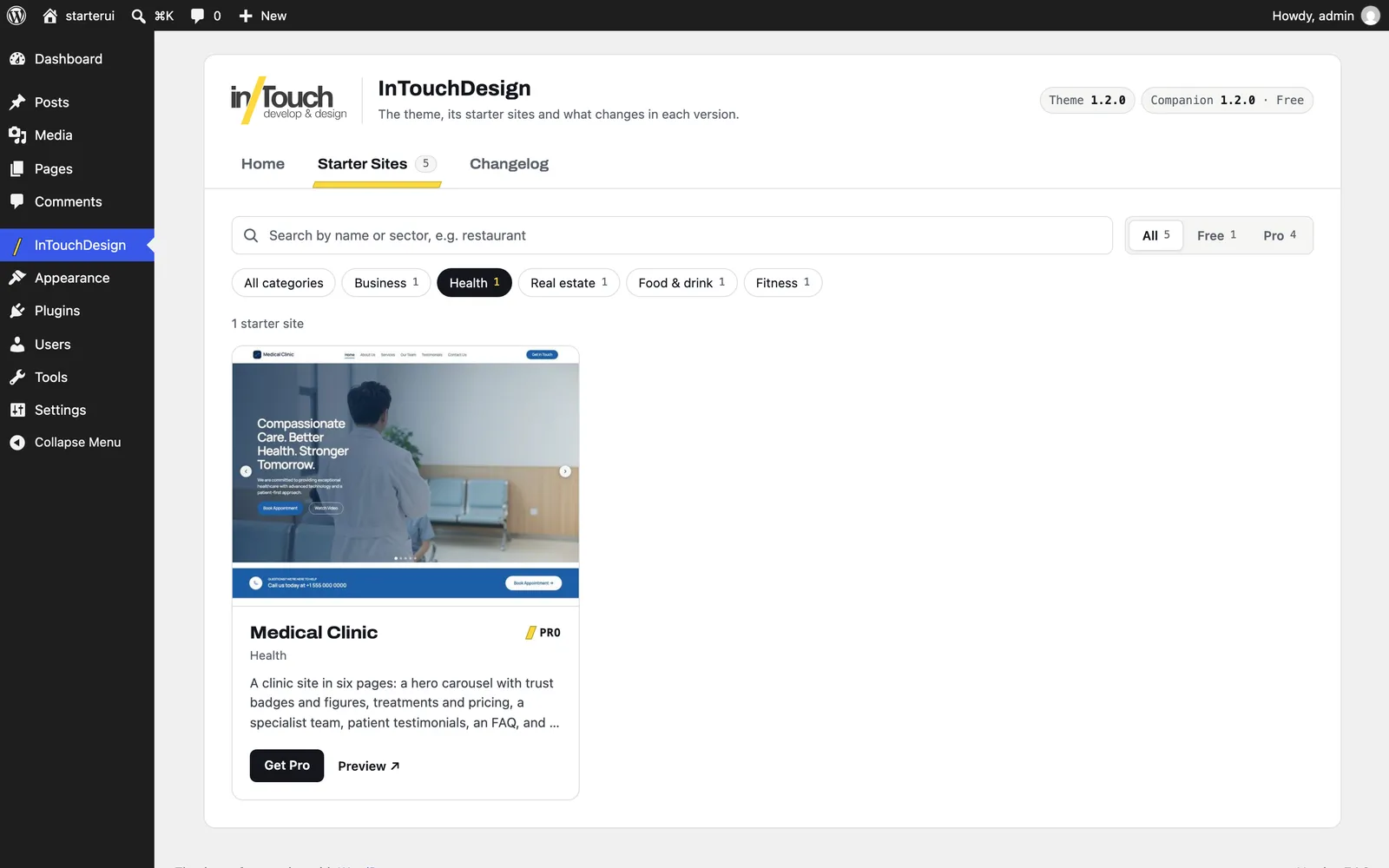
Click Preview on a card to open its live demo in a new tab.
After you import a starter site, its card says “Imported” with the version of its content, and its button becomes Review import. When the InTouchDesign theme is not active, the button reads Theme needed and does nothing.
Step 1: import the content
- On the card of the starter site, click Import. The review screen opens, titled with the starter site’s name, for example Import “Corporate”.
- Read what will happen. The screen lists the pages, the menus and the images the import will create, and what it will skip.
- If a page with the same address already exists on your site, decide whether to replace it (see Pages that already exist).
- Click Import content. Click Cancel to go back without importing anything.
When the import finishes, the screen says what it created, for example “Content imported: 6 pages, 2 menus and 5 images were created.”, and moves on to step 2.
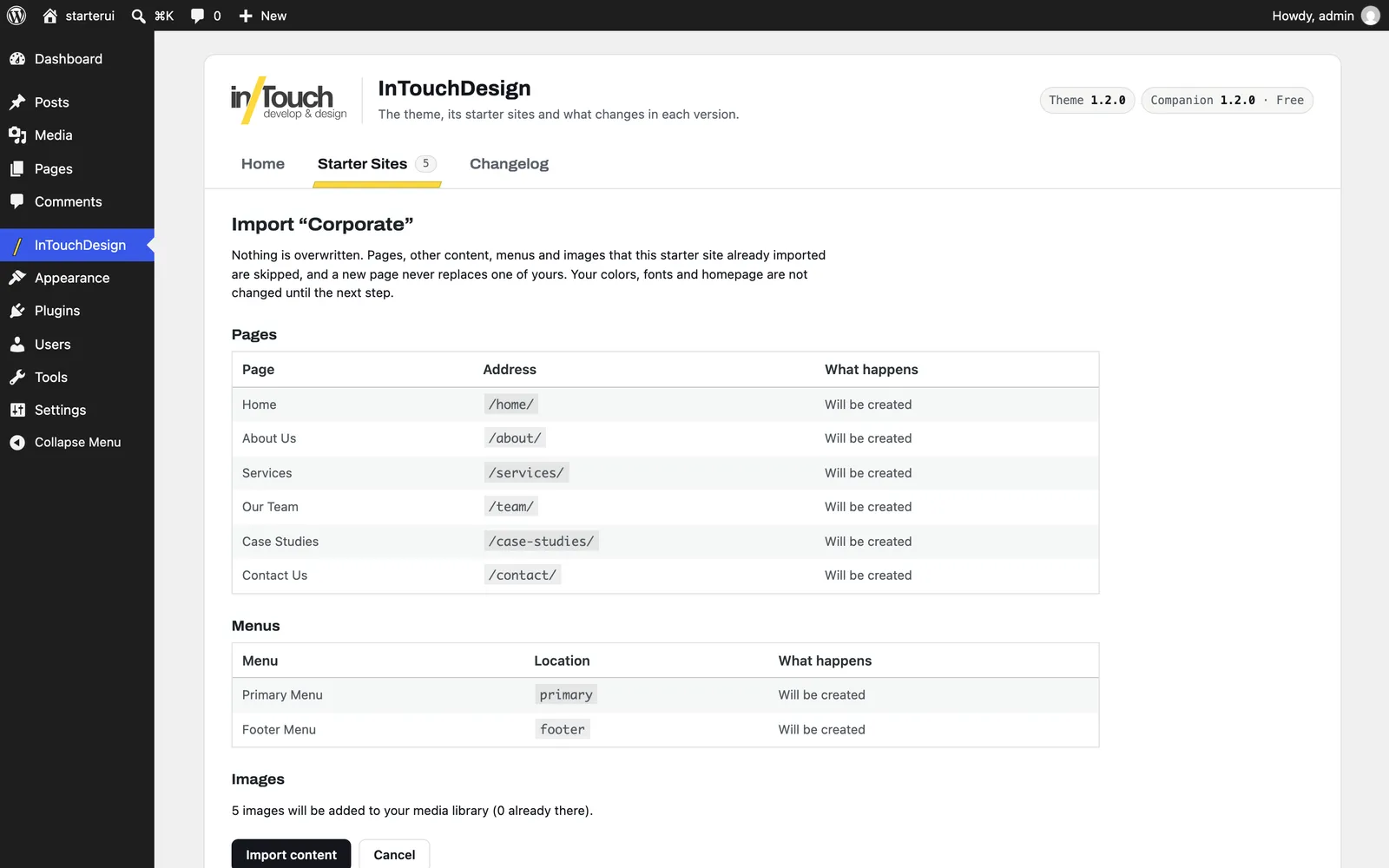
What the review screen lists
- Pages: each page with its address (for example
/about/) and what happens to it: “Will be created”, or “Already imported, skipped” when this starter site created it before. - Other content: shown only when the starter site brings entries of its own content types, such as property listings. They are example entries you can edit or delete like any other content.
- Blog posts: shown only when the starter site brings sample blog posts, with how many will be created. A box, ticked by default, reads Import the N sample blog posts. Untick it to leave them out: a newsletter or social plugin that announces new posts could otherwise send them to your site’s subscribers. Everything else is imported as usual.
- Contact Form 7: shown only when the starter site creates a form. See The reservation form and The test drive form.
- Menus: each menu with its location (for example
primary) and what happens to it. - Images: how many images will be added to your media library, and how many are already there.
The new pages are published at their addresses. Your colors, fonts, front page and menu locations do not change until step 2.
The pages, posts and images the import creates are closed to comments and pings, whatever your discussion settings say, so the sample content collects no spam. Shop products keep their reviews as WooCommerce sets them. You can open comments again on each item from its own Discussion settings; your site’s defaults do not change.
What step 1 never does
- It never overwrites your content. Pages, menus and images this starter site imported before are skipped, so importing twice does not duplicate anything.
- It never replaces one of your pages unless you tick the box described below.
- It never replaces a menu. If you already have a menu with the same name, the new one gets the starter site’s name added, for example “Primary Menu (Corporate)”.
Pages that already exist
If one of your pages already uses the address of a page in the starter site, its row says so. When your page can be replaced, the row also shows its title and the date it was last modified.
By default, the import creates the new page with a number added to its address, for example /about-2/, and your page stays as it is.
The review screen has a box to replace your pages instead. It appears only when at least one of the starter site’s addresses is already taken on your site. Tick Replace my existing pages that use the same address instead of creating copies with a number before you click Import content. The box is off by default. Each replaced page keeps its address and its status, but takes the title and the content of the starter site. Its current version is saved in the page’s revisions, so you can bring it back from the page editor.
The box does not appear when your site’s revision settings could not keep the current version of a page. The screen then says: “Replacing is not available: this site’s revision settings could not keep the current version of a replaced page.”
The progress bar
When the starter site has images that are not in your media library yet, a progress bar appears under the button after you click Import content. It shows “Preparing the images…”, then “Importing images 3 of 5…” as each image arrives, then “Creating pages, listings and menus…”. Leave the page open until step 2 appears.
If the import stops while it uploads the images, the screen says why, for example: “The import stopped. Nothing is lost: the images already uploaded will be reused when you try again.” The images already uploaded stay in your media library. Click Import content again to continue.
If the import fails later, while it creates the pages and menus, the Companion removes what that attempt created and puts back any page it replaced. The review screen shows the error, and you can try again.
Step 2: apply the look
After step 1, the screen Apply the look of “Corporate” (with the name of your starter site) shows every setting that will change, with its value Now and After.
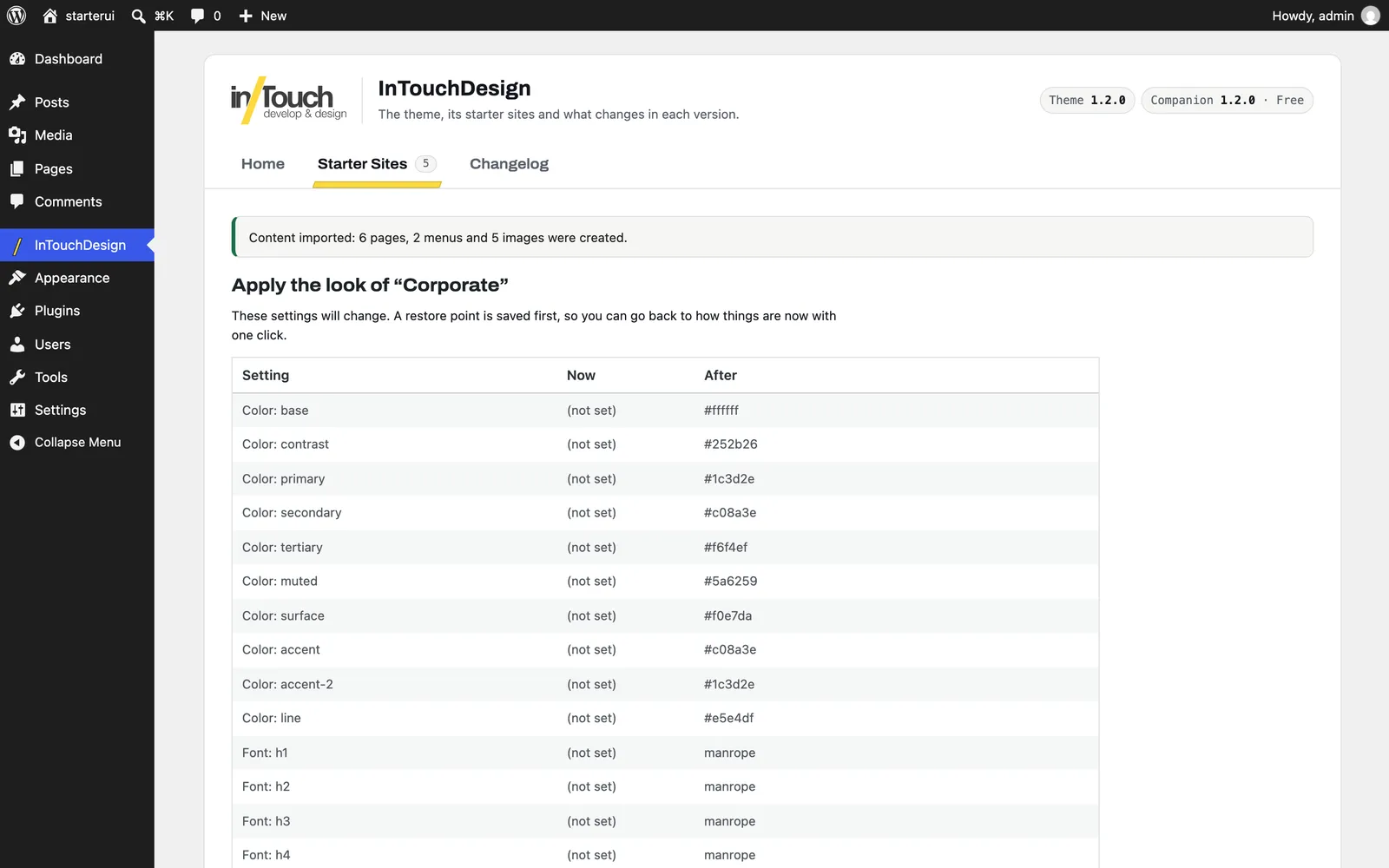
| Row on the screen | What it changes |
|---|---|
| Color: base, Color: primary, … | The ten colors of the theme’s palette |
| Font: h1 … Font: h6, Font: body | The font of each heading level and of the body text |
| Header layout, Sticky header, Show page title, Footer columns, … | The theme options you also find in the Customizer |
| Front page shows, Front page, Posts page | What your homepage shows (Settings › Reading) |
| Menu location: primary, Menu location: footer | Which imported menu appears in the header and in the footer |
| Footer column 1 widgets, Footer column 2 widgets | The widgets in the footer columns, for example Contact and Hours |
The rows depend on the starter site. A color, a font or a theme option that already has the starter site’s value is left out of the table.
- Read the table.
- Click Apply these settings. The Companion saves a restore point, then changes the settings.
- You are back on the Starter Sites tab, with the notice “Settings applied. You can undo this with “Restore previous settings” on this screen.”
Your widgets that were in those footer columns are not deleted. You find them under Inactive widgets in Appearance › Widgets. Widgets this starter site placed there earlier, and that nobody changed since, are replaced instead, so applying twice does not pile them up. Footer columns the starter site does not use are not touched.
If you click Keep my current settings, nothing changes and you go back to the list of starter sites. To apply the look later, click Review import on the card, then Import content: everything already imported is skipped, and step 2 opens again.
When a starter site sets a front page and menus, as every current one does, the Front page shows, Front page and Menu location rows are always listed, even when their value does not change. So when you apply a starter site a second time, the table still shows those rows.
Undo step 2: the restore point
After you apply a starter site’s look, a box above the list of starter sites says when you applied it, with a Restore previous settings button. The Home tab shows the same button in its Status panel.
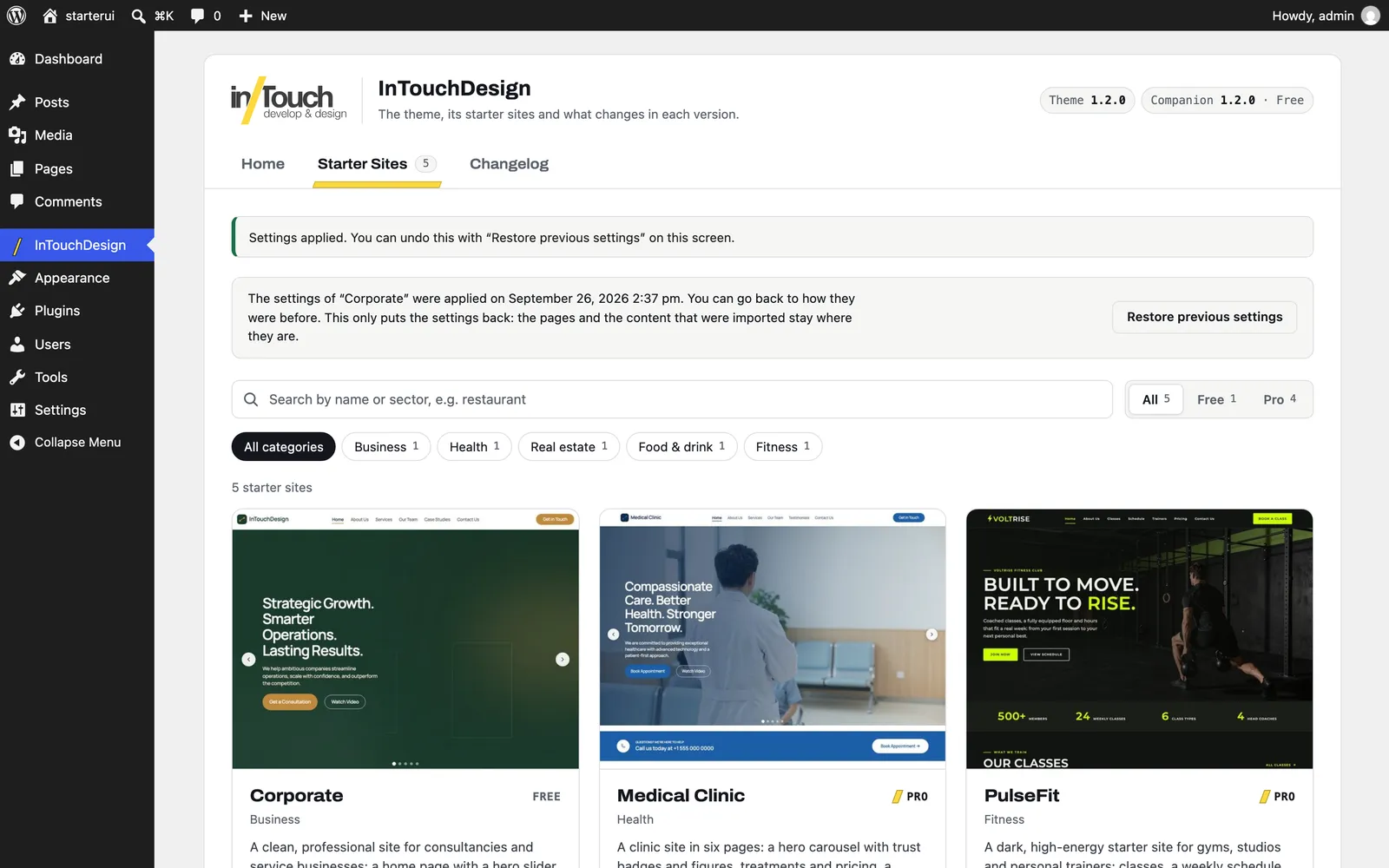
Click Restore previous settings. The screen confirms: “Your previous settings were restored. Imported pages, menus and images were left in place.”
The restore puts back, as they were before you applied the look:
- The colors, the fonts and the theme options.
- The front page and the posts page.
- The menu locations.
- The footer widgets: the ones that were moved to Inactive widgets go back to their columns.
It leaves in place everything step 1 imported: pages, menus, images and example entries. To bring back a page that step 1 replaced, use that page’s revisions.
The restore point holds your theme settings and your widget areas as a whole, as they were when you applied the look. A change you made to them afterwards, in the Customizer or in Appearance › Widgets, is undone too.
There is one restore point at a time. Applying the same starter site again keeps the restore point from the first time. Applying a different starter site replaces it with your settings as they are at that moment, so a restore then brings back the look of the first starter site. After a restore, the restore point is removed, the box disappears, and the Home tab says “No starter site applied yet” again, even though the imported content is still there.
If you delete the Companion, the restore point is deleted with it. The imported pages, menus and images stay on your site.
Starter sites that need a plugin
Homeware is an online shop, and WooCommerce runs it. A starter site that needs a plugin says so on its review screen: it lists the plugin with the version it needs, and a button to Install, Activate or Update it, whichever is missing. Nothing is imported until the plugin is in place. The Companion never installs a plugin on its own.
Homeware needs WooCommerce 11.0 or newer, theme 1.2.1 or newer, and Companion Pro 1.3.0 or newer with an active licence. When you import it, the Companion switches on the Pro shop module (see Shop).
Step 1 creates the pages and the twelve sample products, with their photos, categories and tags. Step 2 makes the pages Homeware brings (Shop, Cart, Checkout and My account) the pages WooCommerce uses, and lists the bottom bar for phones among its settings. It does not set your currency, taxes, shipping zones or payment methods: set those up in WooCommerce. The Shipping & Returns page carries a table of costs in euro as ordinary page text, so edit it to match your own rates.
If WooCommerce still has its “coming soon” mode on, the review screen says that your store pages, or your whole site, are hidden from visitors. The import does not change it: you launch the store from WooCommerce, under Settings, Site visibility, when you are ready.
Contact forms
Contact Form 7 is optional. The Companion never installs it for you: the Home tab links to Install Contact Form 7 or Activate Contact Form 7 when it is missing.
The Pro starter sites (CarDealer, Homeware, Medical Clinic, PulseFit, Real Estate and Restaurant) put the contact form shortcode on their contact page: [itdcompanion_contact_form], or its old name [itd_contact_form] in the starter sites made before Companion 1.5.0, which Companion Pro still reads (see Shortcodes). It shows a Contact Form 7 form when that plugin is active. Without Contact Form 7, it shows an Email Us button instead, which opens an email to the Administration Email Address of Settings › General. Check that address before you publish the site, or install and activate Contact Form 7 to show a real form. See Shortcodes for the details.
Corporate’s Contact Us page has an Email Us button of its own, written into the page. Corporate also comes with placeholder contact details (an example phone number, info@example.com and “1 Example Avenue, Springfield”) on its pages and in the footer’s Contact widget. Replace them with your own before you publish the site.
The test drive form
The CarDealer starter site asks for a test drive form on its Test Drive page, with [itdcompanion_contact_form form="test-drive"] ([itd_contact_form form="test-drive"] in the starter site published before Companion 1.5.0).
- Contact Form 7 active when you import: the import creates a Contact Form 7 form called “Test drive request”, with the vehicle, a preferred date and time, name, phone, email, notes and a box to confirm that the visitor holds a valid driving licence, and a Request a test drive button. Messages go to the site’s admin email address, with the subject “Test drive request”. The review screen lists it before it is created. The Book a test drive button of a vehicle opens this page with the vehicle’s name already in the first field.
- Contact Form 7 not active: the review screen says “Test drive request: will be created once Contact Form 7 is active. Install and activate it, then import again.” Until then, the page shows an Email Your Test Drive Request button. Importing again after you activate Contact Form 7 creates the form, and skips everything that is already there.
The reservation form
The Restaurant starter site asks for a reservation form on its Reservations page, with [itdcompanion_contact_form form="reservation"] ([itd_contact_form form="reservation"] in the starter site published before Companion 1.5.0).
- Contact Form 7 active when you import: the import creates a Contact Form 7 form called “Table reservation”, with date, time, guests, name, phone, email and notes, and a Request a table button. Messages go to the site’s admin email address, with the subject “Table reservation”. The review screen lists it before it is created.
- Contact Form 7 not active: the review screen says “Table reservation: will be created once Contact Form 7 is active. Install and activate it, then import again.” Until then, the page shows an Email Your Reservation button. Importing again after you activate Contact Form 7 creates the form, and skips everything that is already there.
Pro starter sites in the free plugin
The free Companion shows the Pro starter sites next to Corporate, marked Pro. Choose Pro in the plan filter to see only them.
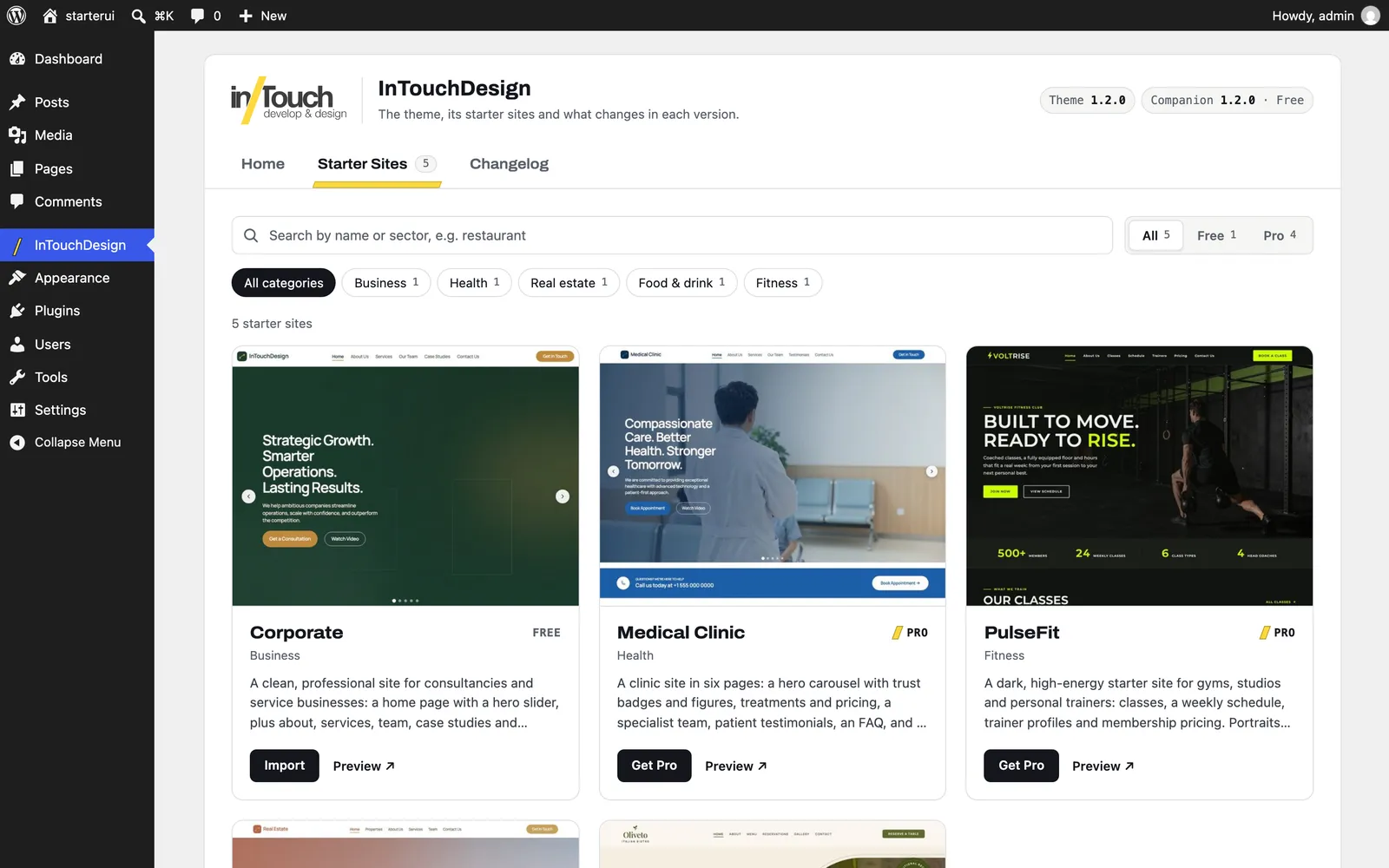
A Pro card has two links, and no import button:
- Get Pro opens the InTouchDesign website, where Companion Pro is sold, in a new tab.
- Preview opens the starter site’s live demo in a new tab.
The free plugin cannot import a Pro starter site. The list of Pro starter sites and their pictures are files inside the plugin, so showing them contacts no server. To import one, you need Companion Pro and an active licence: see Companion Pro.