
Getting started
Install the InTouchDesign theme and the Companion plugin, then find the Starter Sites screen in your WordPress admin.
Updated
On this page
You install two things: the InTouchDesign theme, then the InTouchDesign Companion plugin. Both need WordPress 6.5 or later and PHP 8.0 or later, and an administrator account to set up.
Install the theme
The theme is in review for the WordPress.org directory. Until it is listed there, you download it from this site: intouchdesign-1.3.0.zip (1.2 MB). Keep the file zipped.
- In your WordPress admin, go to Appearance › Themes and click Add Theme.
- Click Upload Theme, choose the zip file and click Install Now.
- Click Activate.
WordPress 6.5 to 6.7 names the button Add New Theme.
The Companion also works with a child theme of InTouchDesign.
Install the Companion
- Go to Plugins › Add Plugin.
- Search for “InTouchDesign Companion” and click Install Now on its card, to install it from WordPress.org. If you have the plugin as a zip file, click Upload Plugin instead, choose the file and click Install Now.
- Click Activate (after an upload, Activate Plugin).
WordPress 6.5 to 6.7 names the menu entry Add New Plugin.
The first time you use the plugin, it asks whether you want to opt in to Freemius, to get emails about security and feature updates, educational content and occasional offers. You can click Skip: nothing about your site is shared unless you opt in.
If you opt in, Freemius receives what the opt-in screen lists:
- Your name and email address, from your WordPress user.
- Your site address and title, your WordPress and PHP versions, and the site language.
- The plugin and SDK versions, and whether the plugin is active or uninstalled.
- The list of your plugins and themes, with their versions and whether they are active. This one is on by default, and you can switch it off before you opt in.
If you bought Companion Pro, read Companion Pro for how to activate your licence.
Open the Companion screen
The Companion adds an InTouchDesign menu to the dashboard. Click it, or its first entry Starter Sites, to open the Companion screen.
The top of the screen shows the versions installed on your site, for example “Theme 1.3.0” and “Companion 1.3.2 · Free”. Below are three tabs. Companion Pro adds a fourth, Modules; see Companion Pro.
If the theme is not active, the screen tells you: “Starter Sites need the InTouchDesign theme. Activate it under Appearance → Themes, then come back.” The How to get the InTouchDesign theme link under it opens the install steps above.
Home
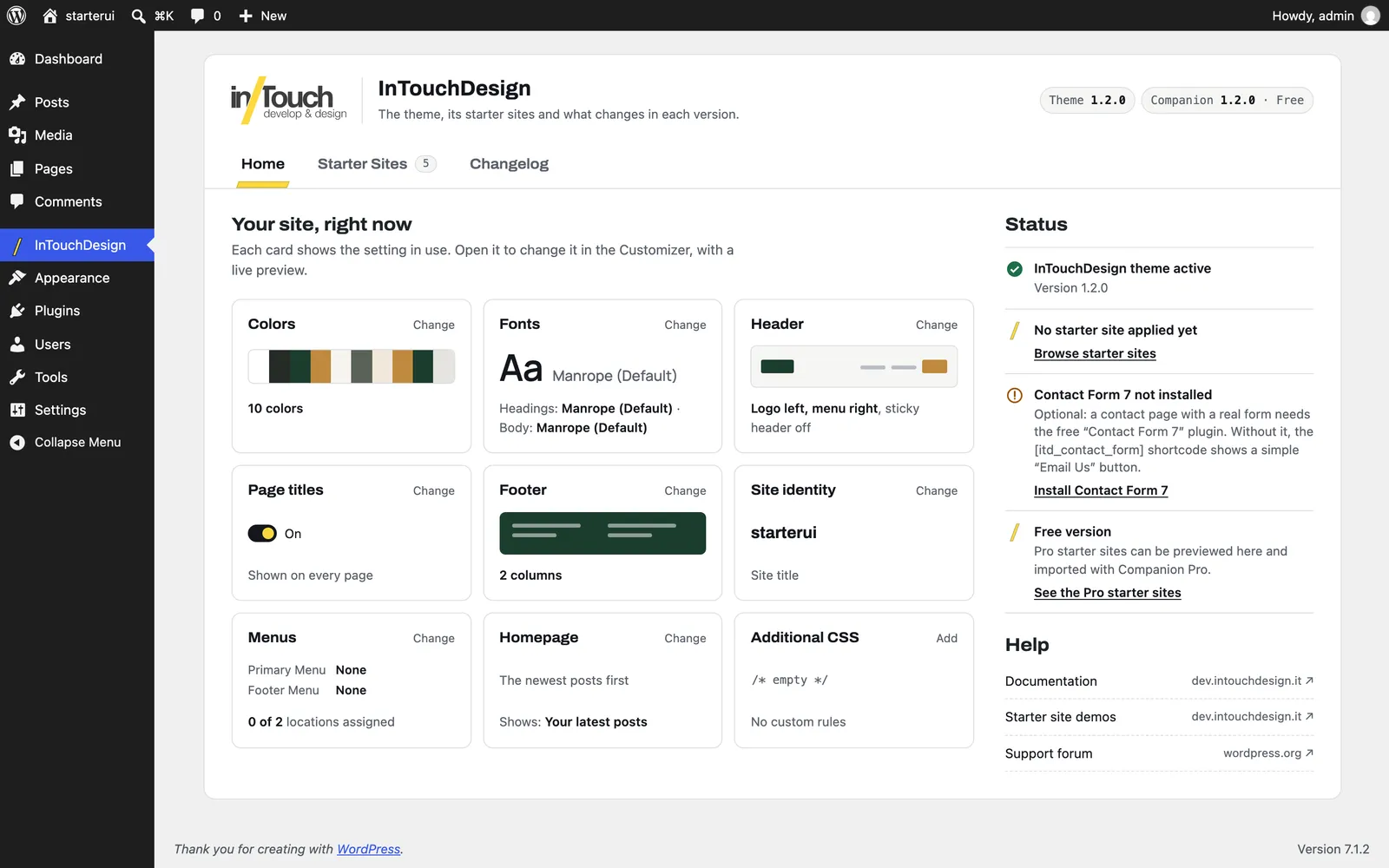
Your site, right now shows nine cards: Colors, Fonts, Header, Page titles, Footer, Site identity, Menus, Homepage and Additional CSS. Each card shows the setting in use. Click Change (or Add) to open that setting in the Customizer.
The Status panel on the right tells you:
- Whether the InTouchDesign theme is active, and its version.
- Which starter site you applied, with a Restore previous settings button, or “No starter site applied yet”.
- Whether Contact Form 7 is installed and active, with a link to install or activate it. Contact Form 7 is optional; see Contact forms.
- In the free plugin, a link to see the Pro starter sites.
The Help panel links to this documentation, the starter site demos and the support forum.
Starter Sites
The list of starter sites, with a search box and filters by plan and category. Each card has a picture, a short description and a Preview link to its live demo. This is where you import a starter site: see Starter sites.
Changelog
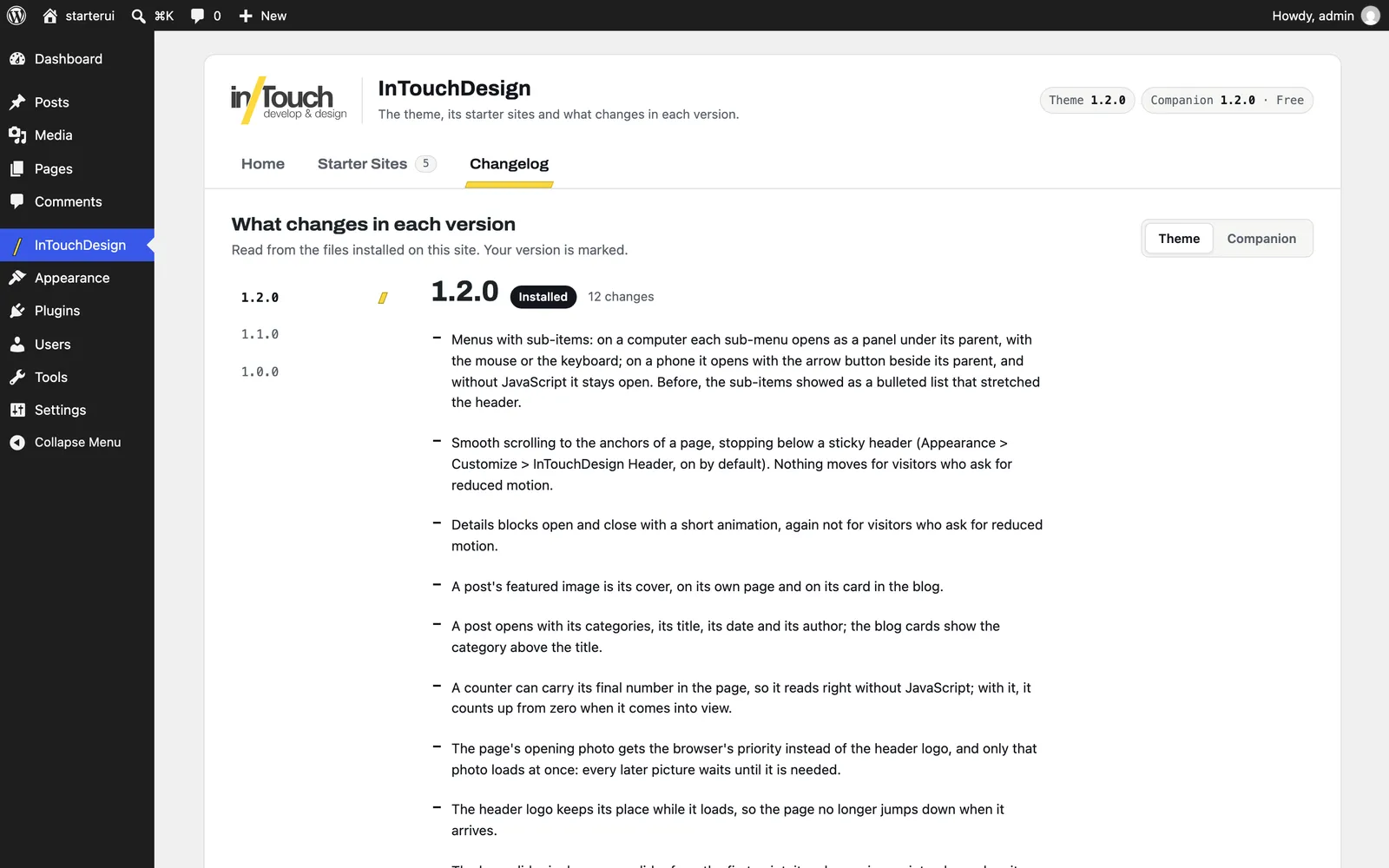
What changed in each version, read from the files installed on your site. Switch between Theme and Companion at the top. The version installed on your site is marked “Installed”.
Next step
Pick a starter site and import it: Starter sites.