
Customize your site
Change the colors, fonts, header and footer of the InTouchDesign theme in the Customizer, and add its block patterns and footer widgets.
Updated
On this page
You change the look of the InTouchDesign theme in Appearance › Customize. Every change shows in the live preview on the right, and reaches your site only when you click Publish.
When you apply a starter site’s look, it sets many of these settings for you. You can change any of them afterwards. To go back to your settings from before the starter site, see Undo step 2: the restore point.
Open the Customizer
Go to Appearance › Customize. The Customizer lists these sections, in this order. The five whose names start with “InTouchDesign” come with the theme, the others with WordPress.
- Site Identity
- InTouchDesign Header
- InTouchDesign Colors
- InTouchDesign Fonts
- InTouchDesign Page Title
- Menus
- Widgets
- Homepage Settings
- InTouchDesign Footer
- Additional CSS
Other plugins can add sections of their own to this list.
You can also start from the Companion. On the Home tab of InTouchDesign › Starter Sites, each card of Your site, right now shows a setting in use. Click Change (or Add) on a card to open the Customizer at that section. When you close the Customizer, you are back on the Home tab. See Home.
Colors
InTouchDesign Colors holds the ten colors of the theme’s palette. Change one, and your site uses the new color everywhere the theme and your blocks use that palette color.
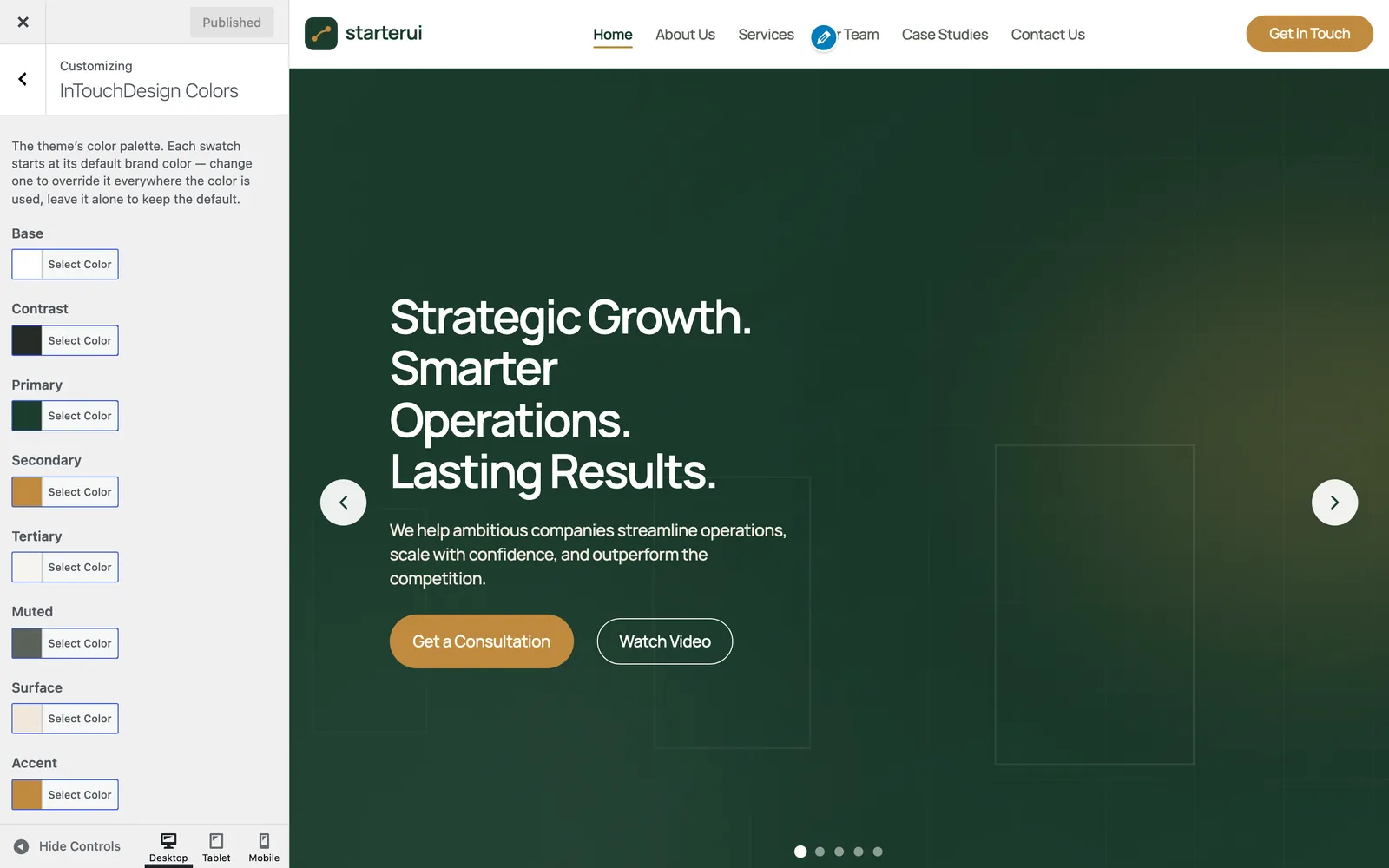
To change a color, click Select Color under its name, then pick a color or type its hex code. Default puts back the theme’s own color.
| Color | Theme default |
|---|---|
| Base | #ffffff |
| Contrast | #252b26 |
| Primary | #1c3d2e |
| Secondary | #c08a3e |
| Tertiary | #f6f4ef |
| Muted | #5a6259 |
| Surface | #f0e7da |
| Accent | #c08a3e |
| Accent 2 | #1c3d2e |
| Line | #e5e4df |
A starter site can set colors of its own. Default puts back the color in this table, not the starter site’s color.
Fonts
InTouchDesign Fonts has one list for each heading level, H1 to H6, and one for Body Text. Each one starts on Manrope (Default).
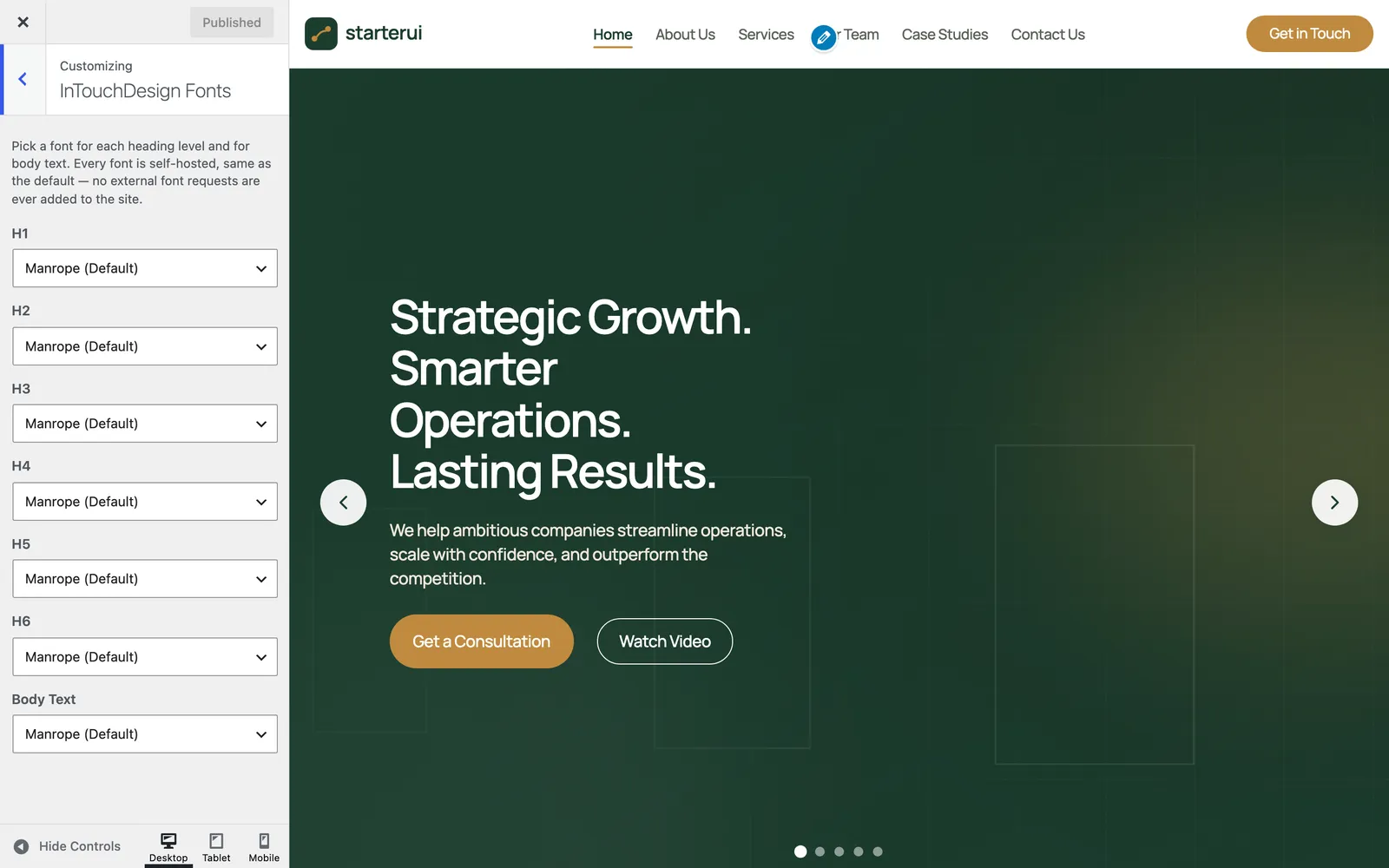
Each list offers the same eleven fonts:
- Manrope (Default)
- Fraunces
- Inter
- Poppins
- Playfair Display
- Merriweather
- Lora
- Montserrat
- Nunito
- Work Sans
- DM Serif Display
Every font is a file inside the theme. Your site loads it from your own server, and never asks an external font service for it.
Header
InTouchDesign Header sets the layout of the header and its button.
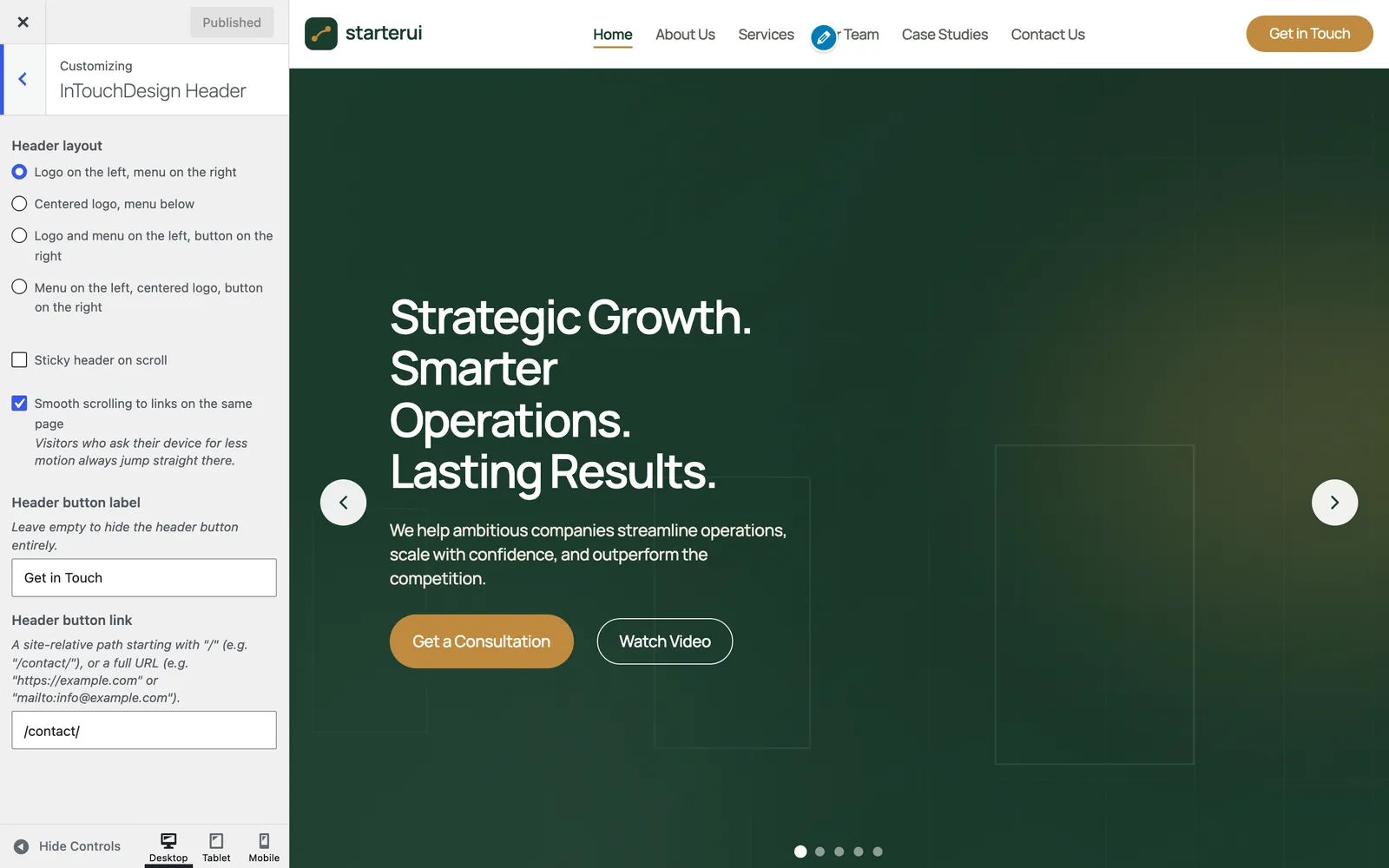
| Setting | Default | What it does |
|---|---|---|
| Header layout | Logo on the left, menu on the right | Where the logo, the menu and the button sit. See the layouts below. |
| Sticky header on scroll | Off | Keeps the header at the top of the screen while visitors scroll. A link to a section of the same page then stops the section below the header, not under it. |
| Smooth scrolling to links on the same page | On | A link to a section of the same page glides there instead of jumping. Visitors who ask their device for less motion always jump straight there. |
| Header button label | Get in Touch | The text of the button in the header. Leave it empty to hide the button. |
| Header button link | /contact/ |
Where the button leads. |
The four header layouts:
- Logo on the left, menu on the right
- Centered logo, menu below
- Logo and menu on the left, button on the right
- Menu on the left, centered logo, button on the right
The layouts apply on screens 783 pixels wide and wider. On narrower screens, every layout shows the logo and a menu button, and the header button is hidden.
For Header button link, type one of these:
- An address on your site, starting with
/, for example/contact/. The theme adds your site’s address in front of it. - A full address, for example
https://example.comormailto:info@example.com.
Anything else, such as contact without the /, is not accepted, and the link goes back to /contact/.
Page title
InTouchDesign Page Title has one setting: Show the page title, on by default. It shows the page’s title as a heading at the top of each page.
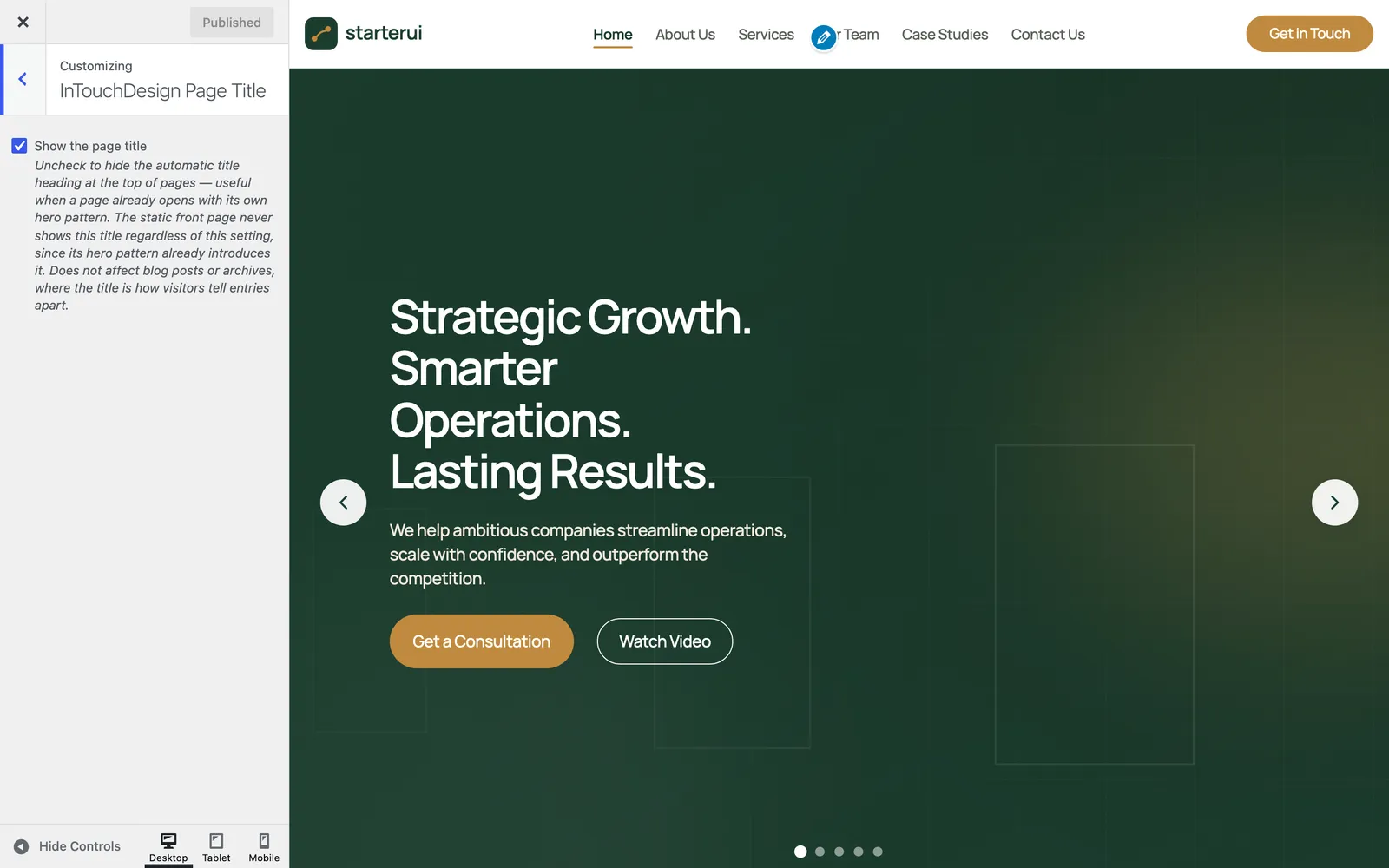
Untick it to hide that heading, for example when your pages open with a section of their own.
Some pages never show this heading, whatever the setting:
- The static front page.
- Pages that open with the theme’s own title band, such as the inner pages of the Corporate starter site.
The setting does not change blog posts and archives: there, the title is how visitors tell entries apart.
Footer
InTouchDesign Footer sets the footer columns, the copyright line and the social links.
![The InTouchDesign Footer section of the Customizer: Number of footer columns set to 2, Copyright text set to © [year] [site], and empty fields for the Facebook, Instagram, X (Twitter) and LinkedIn URLs.](/_astro/customizer-footer.DuQEgcB9_Z1ICIbc.webp)
| Setting | Default | What it does |
|---|---|---|
| Number of footer columns | 2 | How many footer columns can show, from 1 to 4. |
| Copyright text | © [year] [site] |
The line at the bottom of the footer. |
| Facebook URL, Instagram URL, X (Twitter) URL, LinkedIn URL | Empty | The addresses of your social profiles. |
Footer columns
Each column shows the widgets of its widget area, Footer Column 1 to Footer Column 4, in Appearance › Widgets. With Number of footer columns set to 2, only Footer Column 1 and Footer Column 2 can show. A column with no widgets is left out.
Widgets in a column beyond that number stay saved. They show again when you raise the number.
On screens narrower than 783 pixels, the columns stack one above the other.
The theme adds two widgets for these columns: see Footer widgets: Contact and Hours.
Copyright text
The text can use two placeholders:
[year]becomes the current year.[site]becomes your site title.
With the default, a site called “Acme” shows “© 2026 Acme” in 2026. You can also use simple HTML in the text, such as a link.
The footer menu shows next to this line. See Menus.
Social links
The social icons appear inside the InTouchDesign: Contact Info widget, when its Show social icons box is ticked. There is one icon for each network that has an address here. Leave all four empty, and no icons show.
Site identity, menus and homepage
These sections come with WordPress. The theme adds one setting to Site Identity, and gives the menus their places.
Site Identity
- Logo: the header shows your logo at most 60 pixels tall.
- Show the site title next to the logo: added by the theme, off by default. Leave it unticked to show the logo alone. Without a logo, the header always shows the site title.
- Site Title and Tagline: your site’s name and a short description. The site title is also the
[site]of the copyright text. - Site Icon: the small picture in browser tabs and bookmarks.
Menus
The theme has two menu locations:
- Primary Menu: the menu in the header.
- Footer Menu: the menu at the bottom of the footer, next to the copyright line.
To choose the menu of each location, open Menus, then View All Locations. You can also edit your menus in Appearance › Menus.
In the header, a menu item with a sub-menu opens it when visitors point at it or reach it with the keyboard. On a phone, a button next to the item opens its sub-menu.
Homepage Settings
Your homepage displays chooses between Your latest posts and A static page. With a static page, you also choose the Homepage and the Posts page. Every current starter site sets a static front page.
Additional CSS
Type your own CSS here to change the look beyond these settings. The Additional CSS card on the Companion’s Home tab shows how many lines you added, and the first one.
Block patterns
A block pattern is a ready-made section, such as a grid of services or a pricing table, that you add to a page and then edit like any other blocks. The theme brings 16 patterns in the InTouchDesign category.
To add one:
- Open a page in the editor.
- Click the Block Inserter button (the + at the top left) and open the Patterns tab.
- Choose the InTouchDesign category.
- Click a pattern to add it to the page.
| Pattern | What it is |
|---|---|
| Hero Slider | A full-screen carousel of photos, each with a heading, text and buttons. It moves on every 6 seconds, pauses while visitors point at it or use the keyboard in it, and stays still for visitors who ask for less motion. |
| About Preview Split | A large photo beside a short About text. |
| Advantages Checklist | A photo beside a two-column checklist of your advantages. |
| Benefits Checklist | A short checklist of reassurance points beside a photo. |
| Contact Strip | A thin band with a phone reminder and a consultation button. |
| Core Values | A heading above three columns, each with an icon, a title and a text. |
| Services Grid | A heading, six service cards and a “View All Services” button. |
| Full Services Grid | Nine service cards, for a Services page. |
| Stats Banner | A dark band with four numbers that count up when they come into view. |
| Case Studies Preview | Three case studies and a link to the full page. |
| Case Studies Grid (Full) | Eight case studies, each with a headline number and a short client quote. |
| Team Preview | Three team members and a link to the full team. |
| Team Grid | A short introduction beside four team members. |
| Pricing Table | Three plans with their prices and features. |
| FAQ Accordion | Questions that open to show their answers. |
| Keyword Divider | A band of keywords that scrolls across the page. You edit the words like any list. |
The patterns come with example text, numbers and pictures. Replace them with your own before you publish, and show real results and quotes only with your clients’ permission.
Companion Pro adds the patterns of the Pro starter sites you import to the same category. See Companion Pro.
The theme does not download patterns from the WordPress.org pattern directory, so the editor does not contact it for them.
Footer widgets: Contact and Hours
The theme adds two widgets for the footer columns.
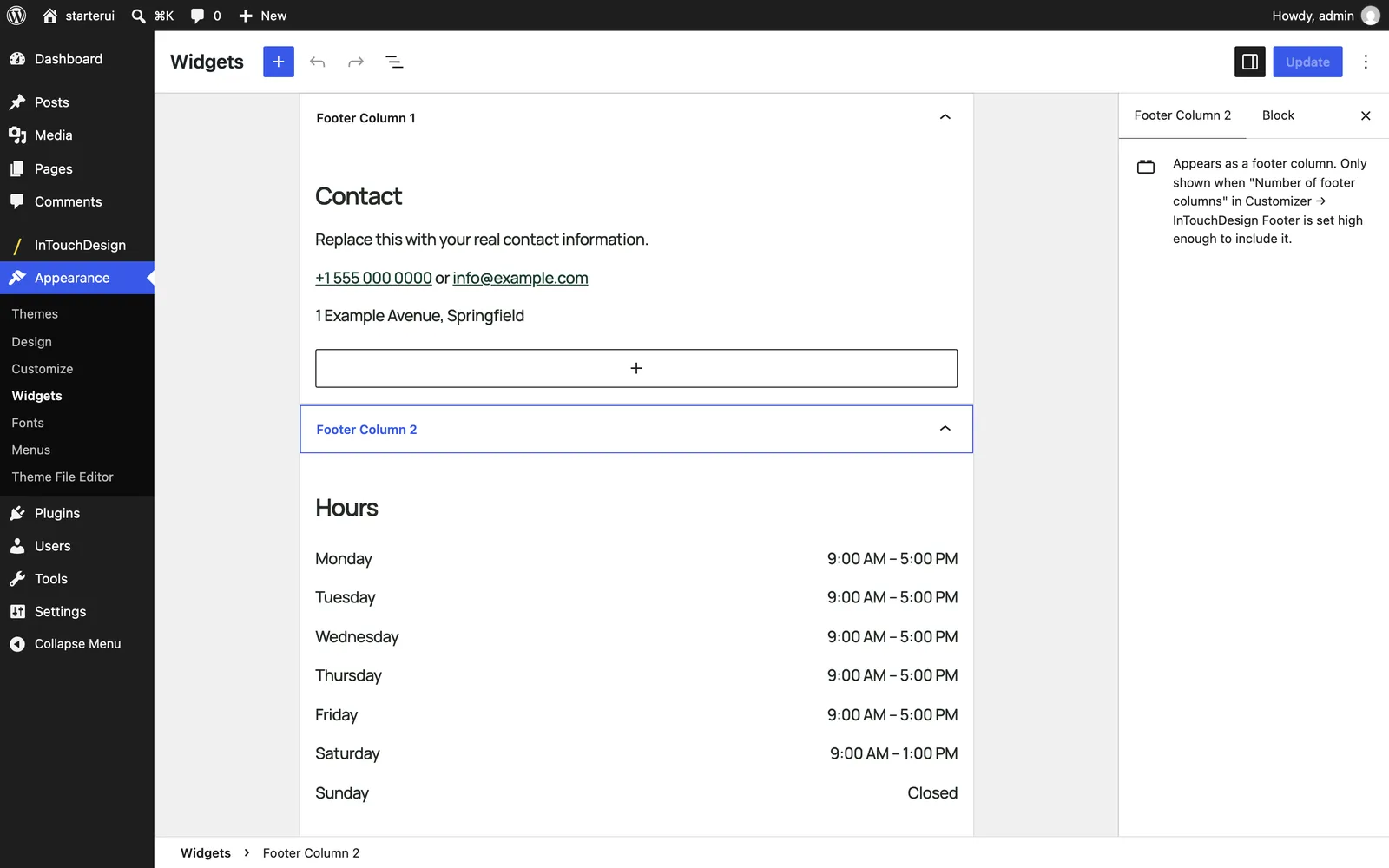
To add one:
- Go to Appearance › Widgets.
- Open the footer column you want, for example Footer Column 1.
- Click the Block Inserter button (the + at the top left), search for “InTouchDesign” and choose the widget.
- Fill in its fields, then click Update.
Check that Number of footer columns in InTouchDesign Footer is high enough to show that column.
InTouchDesign: Contact Info
| Field | What it shows |
|---|---|
| Title | The heading of the column. A new widget starts with “Contact”. |
| Intro text | A short line above your details. |
| Phone | Your phone number, as a link that calls it. |
| Your email address, as a link that opens an email to it. | |
| Address | Your address. |
| Show social icons (URLs set in Customizer → InTouchDesign Footer) | The icons of your social profiles. See Social links. |
When you fill in both the phone and the email, they share one line: “phone or email”.
InTouchDesign: Business Hours
| Field | What it shows |
|---|---|
| Title | The heading of the column. A new widget starts with “Hours”. |
| Monday to Sunday | One line for each day, for example “9:00 AM – 5:00 PM”, or “Closed”. |
A day you leave empty does not show.
The Corporate starter site fills these widgets with placeholder details, such as the phone number “+1 555 000 0000” and the address “1 Example Avenue, Springfield”. Replace them with your own before you publish the site.
Next step
Add a contact form or a portfolio to a page with a shortcode: see Shortcodes.