
Companion Pro
What the Pro build of the Companion plugin adds, how to activate its licence, and what keeps working when the licence expires.
Updated
On this page
Companion Pro is a separate build of the InTouchDesign Companion plugin. It contains everything the free Companion does, so you do not need both. The top of the Companion screen tells you which one you have: “Companion 1.3.2 · Pro” instead of “Companion 1.3.2 · Free”.
What Pro adds
- The Pro starter sites: CarDealer, Homeware, Medical Clinic, PulseFit, Real Estate and Restaurant. The plugin downloads them from the InTouchDesign package server while your licence is active.
- The block patterns and the stylesheet of each Pro starter site. They load only for the Pro starter sites you imported. The patterns appear in the “InTouchDesign” category of the block inserter, next to the theme’s own.
- Property listings, for the listings of an estate agency. The Real Estate starter site needs them. See Property listings.
- Projects, a portfolio shown on any page with the
[itdcompanion_projects]shortcode. See Projects. - Shop, which dresses WooCommerce’s pages in the theme. The Homeware starter site needs it. See Shop.
- Vehicles, an inventory for a car dealership, with a filter, a page for each vehicle and a finance calculator. The CarDealer starter site needs it. See Vehicles.
Companion Pro is sold on the InTouchDesign website. The Get Pro link on a Pro card of the free plugin opens it.
Install Companion Pro
Companion Pro has the same name as the free plugin, InTouchDesign Companion, and contains everything the free Companion does. The two read the same settings and the same imported starter sites, so moving from one to the other keeps your work.
Companion Pro needs the InTouchDesign theme, which is free and does not come with your purchase. Install and activate it first, as Getting started describes.
- Go to Plugins › Add Plugin and click Upload Plugin.
- Choose the Companion Pro zip file from your purchase email and click Install Now.
- If the free Companion is installed, WordPress says “This plugin is already installed.” and compares the two. Click Replace current with uploaded. Otherwise, click Activate Plugin.
When it replaces the free Companion, Companion Pro stays active, and your starter sites, settings and content stay as they are. Then activate your licence, as described below.
If you activate your licence inside the free Companion instead, Freemius offers to install Companion Pro for you. It then sits next to the free Companion, as a second InTouchDesign Companion under Plugins › Installed Plugins. Activating it switches the free Companion off, so only one of the two runs, and your settings carry over. You can then delete the free Companion: deleting it while Companion Pro is active keeps every setting.
Companion Pro gets its updates from InTouchDesign while your licence is active. When it replaced the free Companion, it sits in the free Companion’s folder, and WordPress does not offer it the free Companion’s updates from WordPress.org while Companion Pro is active, so an update never turns it back into the free plugin. If you deactivate it, WordPress may list an update of the free Companion for it: do not install that update. If you did, upload the Companion Pro zip file again.
Activate your licence
On a site that never had the free Companion, the InTouchDesign menu opens a screen that asks for your licence key until you enter it: “Welcome to InTouchDesign Companion! To get started, please enter your license key:”.
- Paste your licence key in the License key box.
- Click Activate License.
Below the button, the line that ends with “InTouchDesign Companion needs to” opens the list of what the plugin shares with Freemius, the service that manages the licences. See Privacy.
If you do not have your key yet, click Activate Free Version. The plugin then asks whether you want to opt in to Freemius, as the free Companion does, and you can click Skip. Companion Pro then works without a licence: see Without an active licence.
If the free Companion was active before, the menu opens the Companion screen instead. Use the licence link in the Status panel of the Home tab, described below: Activate your licence, or Open your account if you opted in to Freemius with the free Companion.
To activate your licence later, go to Plugins › Installed Plugins and click Activate License under InTouchDesign Companion. Paste the key and click Agree & Activate License. If you opted in to Freemius earlier, the button reads Activate License instead.
The Status panel of the Home tab shows the state of your licence:
- Companion Pro · licence active, with a Manage your licence link.
- Companion Pro · licence not active, with the line “Everything you have already imported keeps working. An active licence is needed for new Pro starter sites and updates.” Its link reads Activate your licence and opens the licence key form, also after you clicked Activate Free Version and Skip. On a site connected to Freemius, it reads Open your account instead, and the account page has an Activate License button.
Before you activate a licence, the InTouchDesign menu also has an Upgrade entry. Once the licence is active, that entry reads Pricing, or is not shown.
Once your site is connected to Freemius, by activating a licence or by opting in, the menu also has an Account entry, where Freemius shows your site and your licence.
Once you are past the licence screen, by activating a licence or by clicking Activate Free Version and answering the opt-in, the menu also has a Contact Us entry. It opens a form that writes to InTouchDesign support. See Get support.
Get a Pro starter site
With an active licence, the Starter Sites tab lists the Pro starter sites next to Corporate. The plugin keeps the list for six hours. To fetch it again straight away, click Check for new Pro starter sites above the list.
- On the card of a Pro starter site, click Get this starter site. The button changes to “Downloading…”.
- The plugin downloads the starter site and checks it against the checksum the server publishes. When the check fails, nothing is installed.
- The review screen opens, with the notice “The starter site was downloaded. Review it before importing.”
- Import it in two steps, like any starter site: see Starter sites.
The InTouchDesign theme must be active to download a starter site. You download each starter site once: from then on, its card has an Import button, or Review import after you import it. The plugin keeps the downloaded starter sites in the uploads folder of your site, under itdcompanion-demos (itd-demos before Companion 1.5.0).
If the download does not work, the Starter Sites tab says why. For example:
- “The server is not answering. Try again later.”
- “Too many requests. Try again in a few minutes.”
- “The downloaded starter site does not match its checksum. Nothing was installed.”
- “The uploads folder is not writable.”
Without an active licence
A licence stops being active when it expires or is cancelled. What you already imported keeps working:
- The pages, menus, images and settings of every starter site you imported.
- The stylesheet and the block patterns of the Pro starter sites you imported.
- Property listings, projects, the shop and the vehicles, their pages and their shortcodes.
What needs an active licence:
- Downloading a Pro starter site.
- Importing a Pro starter site again, with Review import.
- Updates. In the words of the Status panel: “An active licence is needed for new Pro starter sites and updates.”
On the Starter Sites tab, the Pro cards show Locked instead of a button, with one of these lines:
- “Renew your licence to get new Pro starter sites and updates.”, when the licence has expired or was cancelled.
- “Unlock the Pro starter sites with a licence.”, when the site has no licence.
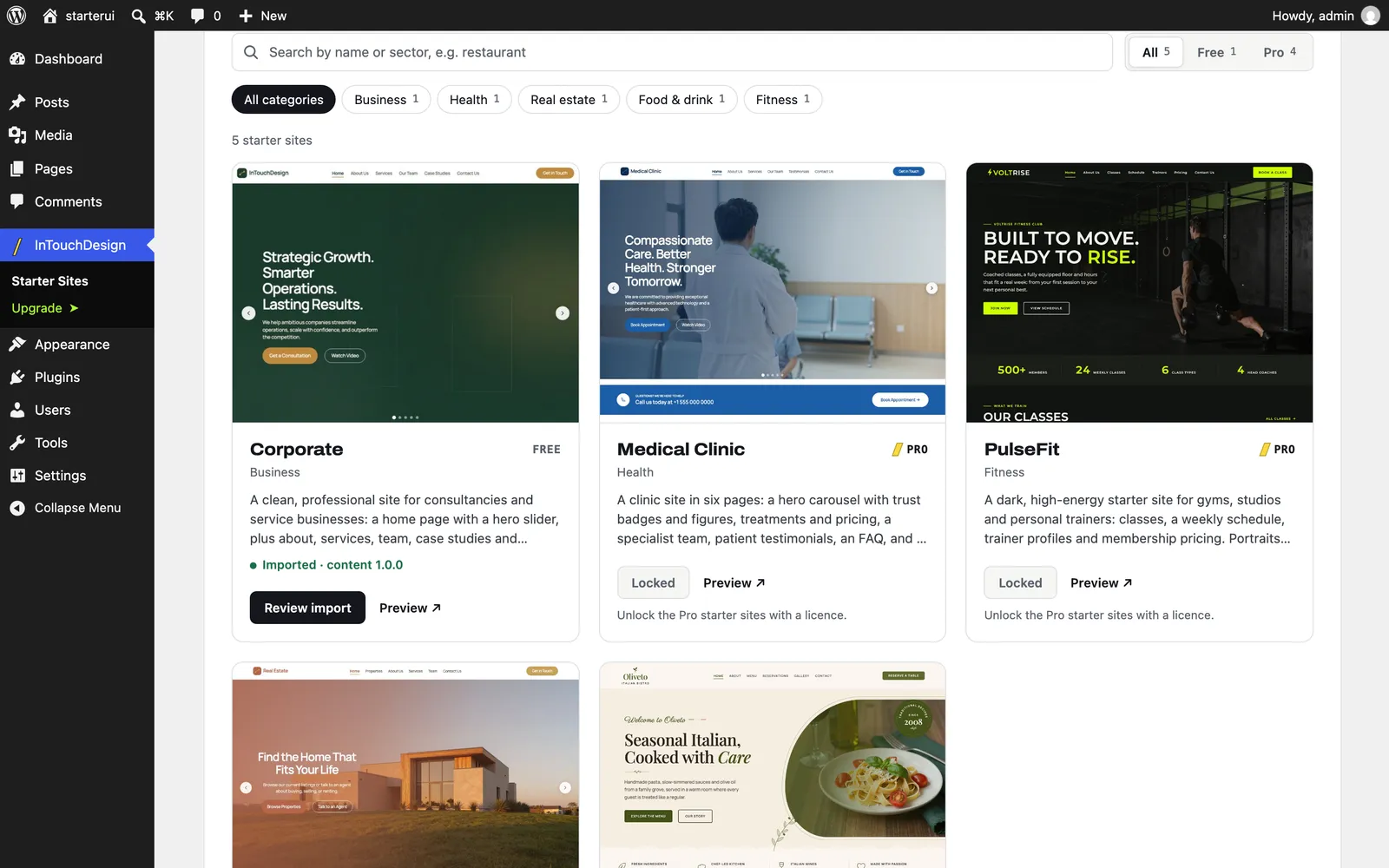
The card of a Pro starter site you imported always stays, marked “Imported”. The other Pro cards stay while the plugin still has the list it saved when the licence was active, for up to six hours. Without an active licence, the plugin does not ask the server for the list. So on a site that never had an active licence, the Starter Sites tab shows only Corporate.
Expiry notices
Before the licence expires, a notice on the Companion screen warns you. The Companion shows its own notices only on that screen, never on your public site:
- In the last 30 days: “Your licence expires in 30 days. Renew it to keep getting new Pro starter sites.” The number counts down.
- In the last 7 days: “Your licence expires in 7 days. Renew it to keep getting new Pro starter sites and updates.”
- Once it has expired: “Your licence has expired. Everything you have already imported will keep working; renew to get new Pro starter sites and updates.”
Freemius, which manages the licence, has a notice of its own. Once it finds that the licence has expired, it shows administrators “Your license has expired…” on the pages of the dashboard, again every 14 days.
The Modules tab
Each Pro module below has a panel on the Modules tab of the Companion screen. A starter site switches on the modules it needs when you import it, so most sites never need to open this tab: it is where you change a module’s settings, or switch one on or off by hand.
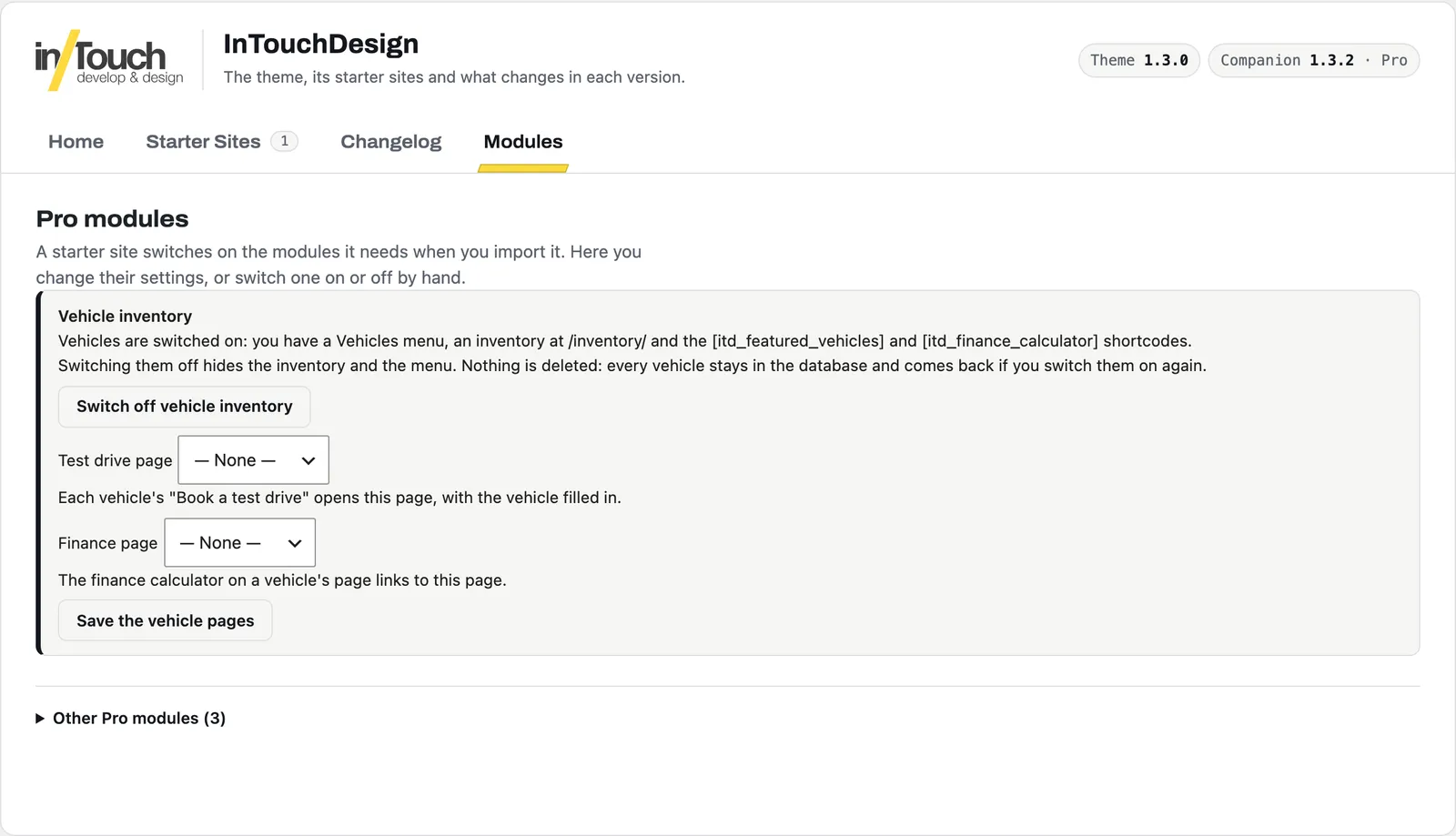
The modules that are on come first, with their settings. The others wait under Other Pro modules: click it to open the list. The Status panel of the Home tab names each module that is on, for example “Vehicle inventory · on”, with a Settings link to this tab.
Property listings
A content type for the listings of an estate agency. The Real Estate starter site switches it on when you import it. You can also switch it on by hand, for example to publish listings without importing Real Estate.
To switch it on or off, open the Modules tab. The Property listings panel has a Switch on property listings button, or Switch off property listings when it is on.
When it is on, you get:
- A Properties menu in the dashboard. Each listing has a title, a description, a featured image and an excerpt.
- Three kinds of categories, in the same menu: Property Types, Property Status and Locations.
- A Property Details box on each listing: Price, Rooms, Bedrooms, Bathrooms, Area (sqm), Address, Floor, Building Floors, Elevator, Kitchen, Furnished, Terrace, Balcony, Parking, Heating and Air Conditioning.
- A Property Gallery box, with an Add Images button.
- A page that lists every listing, at
/properties/, 12 per page. Visitors can filter it by type, status, location, rooms and price, and sort it by newest or by price. - A page for each listing, with its gallery, description and features, and a Request Information box with your contact form.
- The
[itdcompanion_featured_properties]shortcode, which shows your newest listings on any page. See Shortcodes.
Prices show in euros, for example “€ 250,000”. A listing without a price shows “Price on request”.
When a listing has an Address, its page shows a Google Maps map of that address.
Switching property listings off hides the Properties menu, the /properties/ page and the listing pages. Nothing is deleted: every listing stays in your database, and comes back when you switch them on again.
Projects
A portfolio of your work for clients. A starter site that has projects switches it on when you import it. You can also switch it on by hand: the Projects (portfolio) panel on the Modules tab has a Switch on projects button, or Switch off projects when it is on.
When it is on, you get:
- A Projects menu in the dashboard. Each project has a title, a description, a featured image and an excerpt.
- Project Categories, in the same menu. They sort the projects and fill the category bar of the grid, but they have no page of their own on your site.
- A Project Details box on each project: Client, Website and Year.
- A Project Gallery box, with an Add Images button.
- A page for each project, at an address that starts with
/progetto/. It shows the project’s category, client and year, a Visit the website button when you fill in Website, its gallery and its description. - The
[itdcompanion_projects]shortcode, which shows the grid of your projects on any page. See Shortcodes.
No page lists every project by itself: you choose the page, and add the [itdcompanion_projects] shortcode to it. The All projects link on a project’s page leads to your homepage.
Switching projects off hides the Projects menu and the project pages. Nothing is deleted: every project stays in your database, and comes back when you switch them on again.
Shop
A module that makes a WooCommerce store look like the theme. The Homeware starter site switches it on when you import it. You can also switch it on by hand, for example to give a store you already run the theme’s look.
The module needs WooCommerce, which you install yourself: it is not part of the theme or of Companion Pro. Without WooCommerce active, the module does nothing.
To switch it on or off, open the Modules tab. The Shop (WooCommerce) panel has a Switch on the shop button, or Switch off the shop when it is on. Switching it off gives the store pages back WooCommerce’s own look. Nothing is deleted: the products belong to WooCommerce and stay for sale.
When it is on, and WooCommerce is active, you get:
- The shop, product, cart, checkout and account pages in the theme’s colors and layout, with three products to a row and twelve to a page.
- An “added to your cart” notice, shown at the top right of the screen when a shopper adds a product on a store page. It does not appear on the cart or the checkout, nor when WooCommerce sends the shopper to the cart after an add.
- On a product page, an assurance box under the Add to cart button, with a few lines about delivery, returns and the like. The Homeware starter site brings one. See The assurance box.
- A bottom bar on phones, off until you switch it on. See The bottom bar on phones.
The module does not set your currency, taxes, shipping or payment methods: those stay in WooCommerce.
The bottom bar on phones
On screens up to 781 pixels wide, a bar fixed at the bottom of every page, with Home, Search, Cart (with the number of items in it) and Contact. It is never shown on the cart, nor on the checkout while you pay.
The module keeps the bar off by default. A starter site that asks for it, as Homeware does, switches it on when you apply its settings in step 2: the review screen lists it among the settings, and the restore point can undo it. You can also switch it on or off yourself: when the shop is on, the Shop (WooCommerce) panel has a Mobile bottom bar box and a Contact page list, which sets the page the Contact item opens.
The assurance box
The box on a product page takes its content from, in this order:
- A synced pattern named Product assurance in Appearance › Patterns, published by a user who can change the site’s look, such as an administrator. Edit it to change the text on every product page without code. When there are several, the one you edited last is used.
- The pattern the last imported Pro starter site brings, if it has one.
With neither, nothing is shown, and no empty box is left on the page.
Vehicles
A content type for the stock of a car dealership. The CarDealer starter site switches it on when you import it. You can also switch it on by hand, for example to publish vehicles without importing CarDealer.
To switch it on or off, open the Modules tab. The Vehicle inventory panel has a Switch on vehicle inventory button, or Switch off vehicle inventory when it is on.
When it is on, you get:
- A Vehicles menu in the dashboard. Each vehicle has a title, a description, a featured image and an excerpt.
- Five kinds of categories, in the same menu: Makes, Body types, Fuel types, Transmissions and Conditions.
- A Vehicle Details box on each vehicle: Model, Price (€), Sale price (€), Year, Mileage (km), Power (hp), Engine, Colour, Doors, Seats and Featured.
- A Vehicle Gallery box, with an Add Images button. The featured image is the first photo, and the gallery’s photos follow it on the vehicle’s page.
- An inventory page at
/inventory/, 12 vehicles to a page. Visitors can filter it by make, body type, fuel, transmission, condition, price, year and mileage, and sort it by newest, price, mileage or year. A filtered list has an address you can share. - A page for each vehicle, with its photos in a gallery that opens full screen, its key figures, its description and specifications, a sample monthly payment, a Book a test drive button and an Ask about this car box with your contact form.
- The
[itdcompanion_featured_vehicles]and[itdcompanion_finance_calculator]shortcodes. See Shortcodes.
Prices show in euros, for example “€39,900”, and distances in kilometres. A vehicle with a Sale price shows an Offer badge, its old price crossed out and the new one. A vehicle without a price shows “Price on request”.
The finance calculator
The module works out a monthly payment with one formula, in three places: the “from €X/month” on every vehicle card, the same line on a vehicle’s own page, and the finance calculator. The payment is worked out from a representative example, with a 20% deposit, 48 months and a 6.9% fixed rate, which the page prints under the figure. The cards round it to the euro, and the calculator shows it to the cent. The calculator lets a visitor choose a deposit from 10% to 50% and a term of 24, 36, 48 or 60 months. It works without JavaScript: the Calculate button reloads the page with the result.
The figure is an illustration, not an offer of credit, and the page says so. The rate is a nominal fixed rate, so the calculator calls it a fixed rate and never an APR. A developer can change the example for the whole site with the itdcompanion_vehicle_finance_defaults filter, for example in the functions.php file of a child theme. It receives an array with three keys: deposit_pct, the deposit in percent (20 here), months, the term in months (48) and apr, the fixed rate in percent (6.9). The key keeps the name apr for historical reasons, but it holds the fixed rate.
add_filter( 'itdcompanion_vehicle_finance_defaults', function ( $defaults ) {
	$defaults['apr'] = 5.9;
	return $defaults;
} );
The cards, the vehicle pages and the starting values of the calculator all follow it. Values outside the limits (a term of 12 to 96 months, a deposit of 0 to 90%, a rate of 0 to 30%) are brought back to the nearest limit.
The two pages
While the module is on, the Vehicle inventory panel has two lists under the button: Test drive page and Finance page. Choose a published page in each, then click Save the vehicle pages.
- Test drive page: the page that each vehicle’s Book a test drive opens. The vehicle’s name is added to the address, and the form on that page, if it has the
test-driveform, fills the first field with it. - Finance page: the page that the calculator on a vehicle’s page links to, with the words “How our finance works”.
The CarDealer starter site chooses its Test Drive and Financing pages for you when you apply its look, in step 2. With — None —, the button and the link are not shown.
Switching vehicles off hides the Vehicles menu, /inventory/ and the vehicle pages. Nothing is deleted: every vehicle stays in your database, and comes back when you switch them on again.
Get support
Click Contact Us in the InTouchDesign menu, or write to support@intouchdesign.it. Say which versions you use: the top of the Companion screen shows them, for example “Theme 1.3.0” and “Companion 1.3.2 · Pro”. Before you write, you can check FAQ and troubleshooting.
Privacy
The free Companion contacts no server to import or to show starter sites: see FAQ and troubleshooting. Companion Pro contacts two services.
The InTouchDesign package server
Companion Pro contacts dl.intouchdesign.it only from the Companion screen, and only while your licence is active:
- To list the Pro starter sites, when you open the Starter Sites tab and the saved list is more than six hours old, or when you click Check for new Pro starter sites. The request carries the plugin version.
- To download a Pro starter site, when you click Get this starter site. The request carries your site address, your licence key, the IDs Freemius gave your licence and your site, an anonymous ID Freemius gave your site, and the plugin version. The server answers with a download address, and the plugin downloads the starter site from it.
Like every request WordPress makes, these requests also carry the WordPress version and your site address.
Read the terms and the privacy policy of the InTouchDesign package server.
Freemius
Companion Pro uses Freemius for the licence and the updates. The activation screen lists what the plugin shares with Freemius: your site address, the plugin and SDK versions, and whether the plugin is active, deactivated or uninstalled. Two more items are marked optional: your WordPress and PHP versions, site language and title, and the list of your plugins and themes. Once the licence is active, the plugin sends licence data to Freemius from time to time, to check for updates and to verify the licence.
Read the terms and the privacy policy of Freemius.
Your visitors
The pages Companion Pro adds to your site load from your own server, with one exception: the page of a property listing with an Address embeds a Google Maps map, so the visitor’s browser loads that map from Google.