
Tutorial
You’ve activated InTouch Media Cleaner and you’re looking at one of its admin screens right now — probably mid first scan, maybe staring at a "70% confidence" or "coverage: degraded" label you’ve never seen before. This page answers what you’re looking at, not what you might buy.
Already sold on the plugin? The overview page covers that. This one is documentation.
Quick start
- 1
Activate the plugin
Nothing else happens automatically. No background scan starts on its own — the plugin sits idle in the admin menu until you open it.
- 2
Run the first scan
Go to the Scan tab and click Start scan. This first scan is analysis only: by design, nothing can be deleted yet, no matter what it finds. Its only job is to build a picture of the site.
- 3
Run a second scan
Once a second scan confirms the same picture, selection and deletion unlock on the Results tab. This guards against acting on a one-off fluke — a page mid-edit, a builder that hadn’t finished re-indexing, a plugin that was mid-update — by requiring the same conclusion twice before anything becomes actionable.
- 4
Review the Results tab
Don’t just select-all. Open the "Why?" panel on a few rows first — it takes 30 seconds and is the whole point of the plugin (more on this below).
- 5
Select and delete
A two-step confirmation shows a random sample of the items about to be removed and their reasons, before anything happens. Reopening the confirmation shows a different sample, so you can’t just glance at the same one twice.
- 6
If something goes wrong
Every deletion is a soft delete. Go to the Trash tab, find the file, click Restore — it comes back at its original attachment ID, so anything that referenced it by ID, not just by URL, still works.
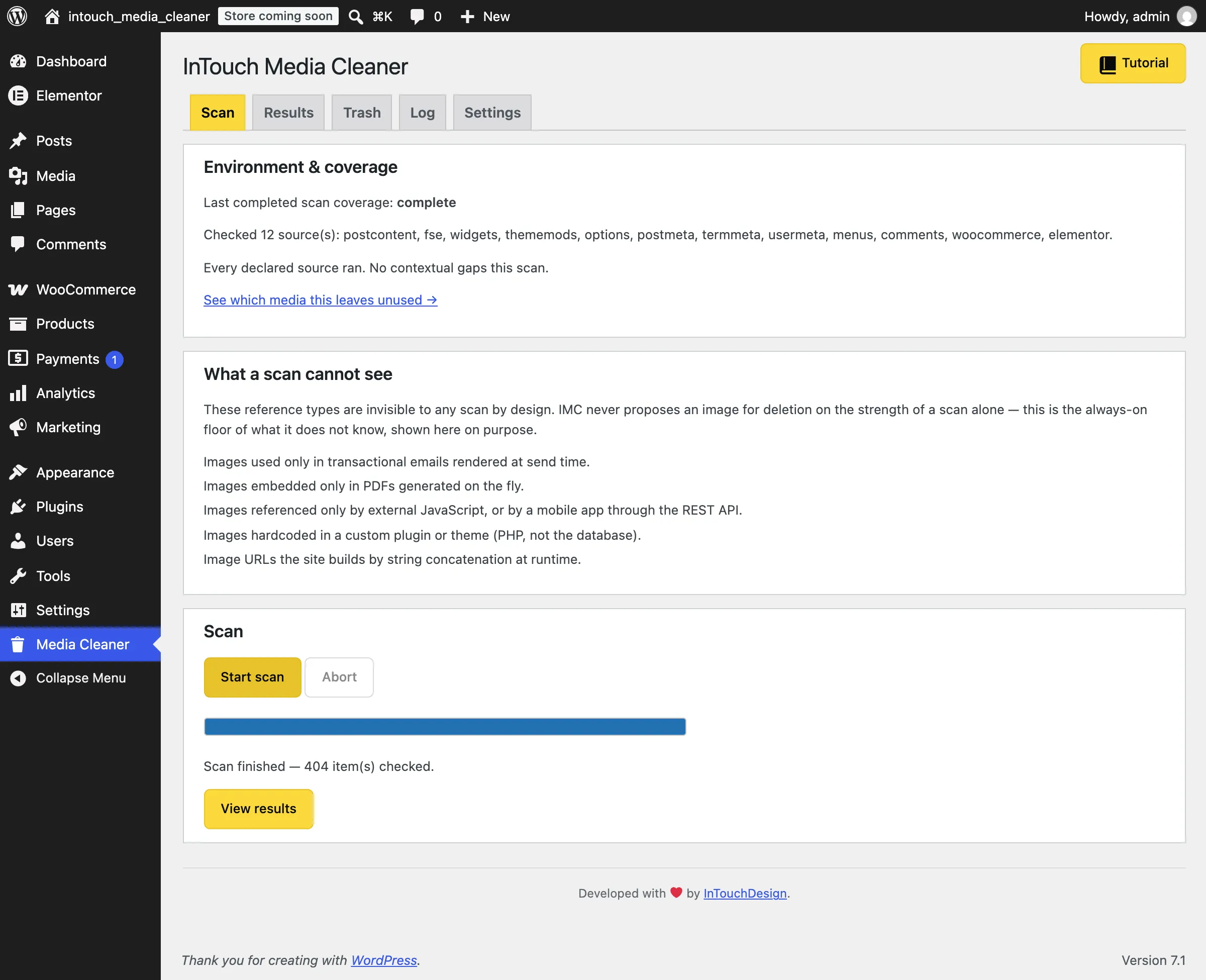
The Scan tab: Start scan, and the coverage panel that appears once a scan completes.
Confidence scores & the 70% cap
Every candidate gets a score from 0 to 100, not a flat "used" or "unused" flag. The default selection threshold is 95%: only items at or above that can be picked with the Results tab’s Select all ≥95% button.
The score is capped at 70% for every item on the site whenever something about that scan’s coverage is incomplete:
- An unsupported builder version
- A builder with no integration at all
- A plugin deactivated in the last 30 days
- A scanner that failed outright
70% is below the 95% threshold on purpose. Those items stay visible, but they’re never swept up in a bulk selection — only chosen one at a time, deliberately.
Ten scanners agreeing "not used" never overrides the eleventh one that didn’t get to look — that’s the actual safety mechanism, not the plugin hedging because it’s "not sure."
The coverage panel, in detail
The Scan tab shows two panels after a scan, and they say more than a single status word could:
"Environment & coverage"
After a completed scan, shows which of the 12 built-in sources ran clean — and names the specific reason for anything that didn’t: an unsupported version and the exact range the adapter reads, a recently-deactivated plugin, or a scanner that failed.
Every declared source ran. No contextual gaps this scan.
"What a scan cannot see"
Always visible, regardless of how the scan went. Lists the handful of reference types no static scan can ever detect. The plugin says this out loud instead of quietly missing it:
- Images used only in transactional e-mails rendered at send time
- Images embedded only in PDFs generated on the fly
- References from external JavaScript or a mobile app via the REST API
- Anything hardcoded in a theme or plugin’s PHP, rather than the database
- URLs a site builds by string concatenation at runtime
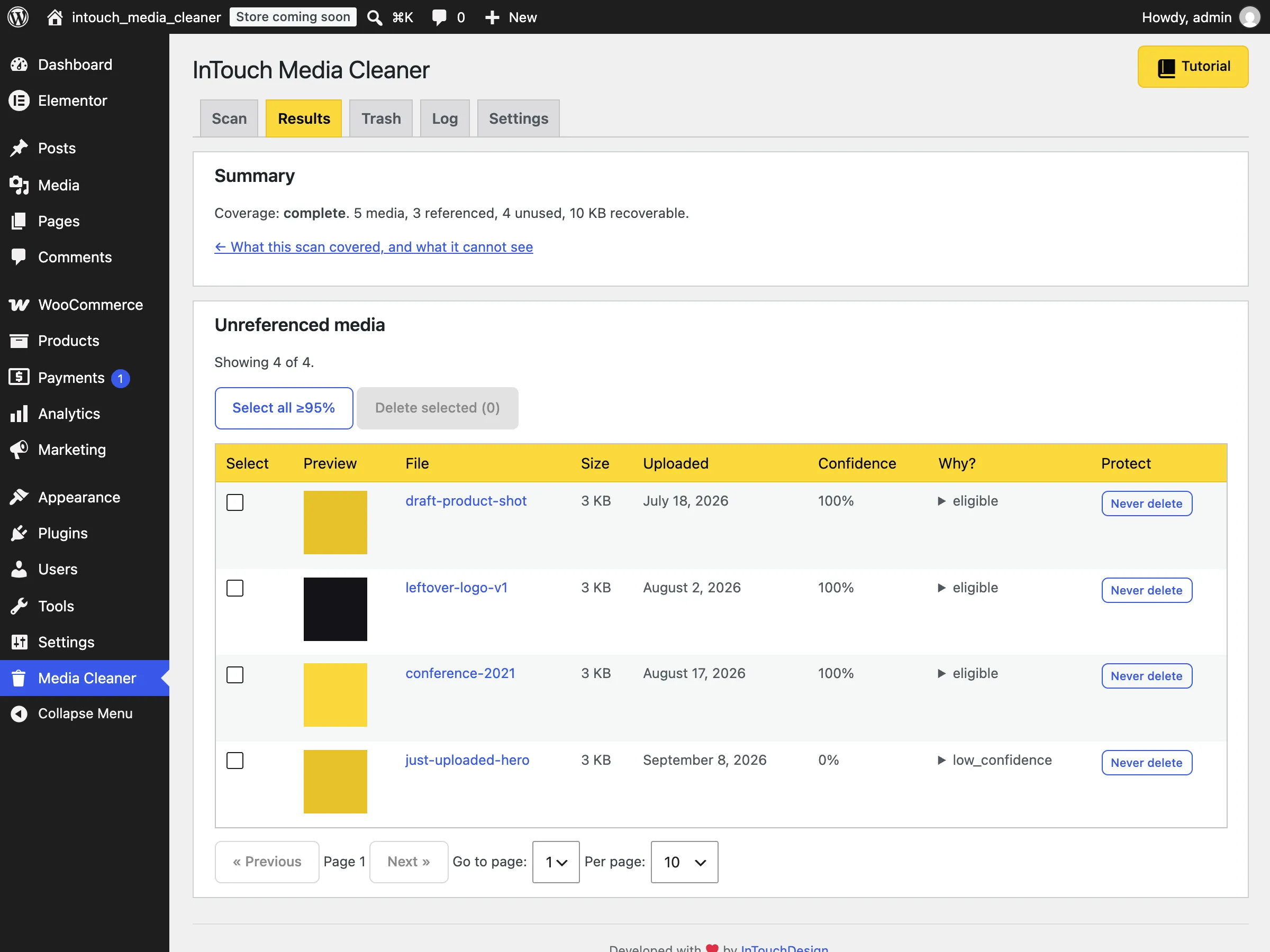
The Results tab: a confidence score on every row, and the coverage summary at the top.
Reading the "Why?" panel
Every row on the Results tab has a "Why?" detail you can expand. It shows which sources were checked for that specific item, what each one concluded, and which confidence tier each check carries:
The reference sits inside a known content structure the adapter parses directly — a Gutenberg image block, a WooCommerce product gallery field, an Elementor media control. Worth the most.
A bare filename shows up somewhere relevant, without the structural context to be certain. Counts for less than a structural match.
A number that happens to equal the attachment ID turns up in an unrelated field. The weakest signal — on its own, enough to protect an item, never enough to clear one.
A real example from the Results tab: a file uploaded four days ago shows up at 0%, tagged low_confidence, with this detail:
Checked: 12 source(s) (postcontent, fse, widgets, thememods, options, postmeta, termmeta, usermeta, menus, comments, woocommerce, elementor).
Nothing referenced it — every source came back clean — but it’s inside the 14-day immunity window, so the score is held down regardless. Compare that to a file with the same clean scan but no immunity window in the way: it lands at 100%, marked eligible.
When an item is protected instead of eligible
If an item is protected, the "Why?" panel will say the safety sweep found its ID or URL somewhere in the options table, or in post, term, or user meta — often a stale setting, or some other plugin’s own record. That’s intentional conservatism, not a false positive to be annoyed at: a value in a meta field that happens to match a real attachment ID is treated as a possible reference, even if it turns out to be coincidental.
Items can be protected or unprotected by hand from that same panel — the Results table’s Protect column carries a Never delete toggle on every row, including ones the plugin already considers eligible.
Trash & restore
Deleting moves files into a plugin-managed trash with a cooling period. Nothing is gone-gone yet.
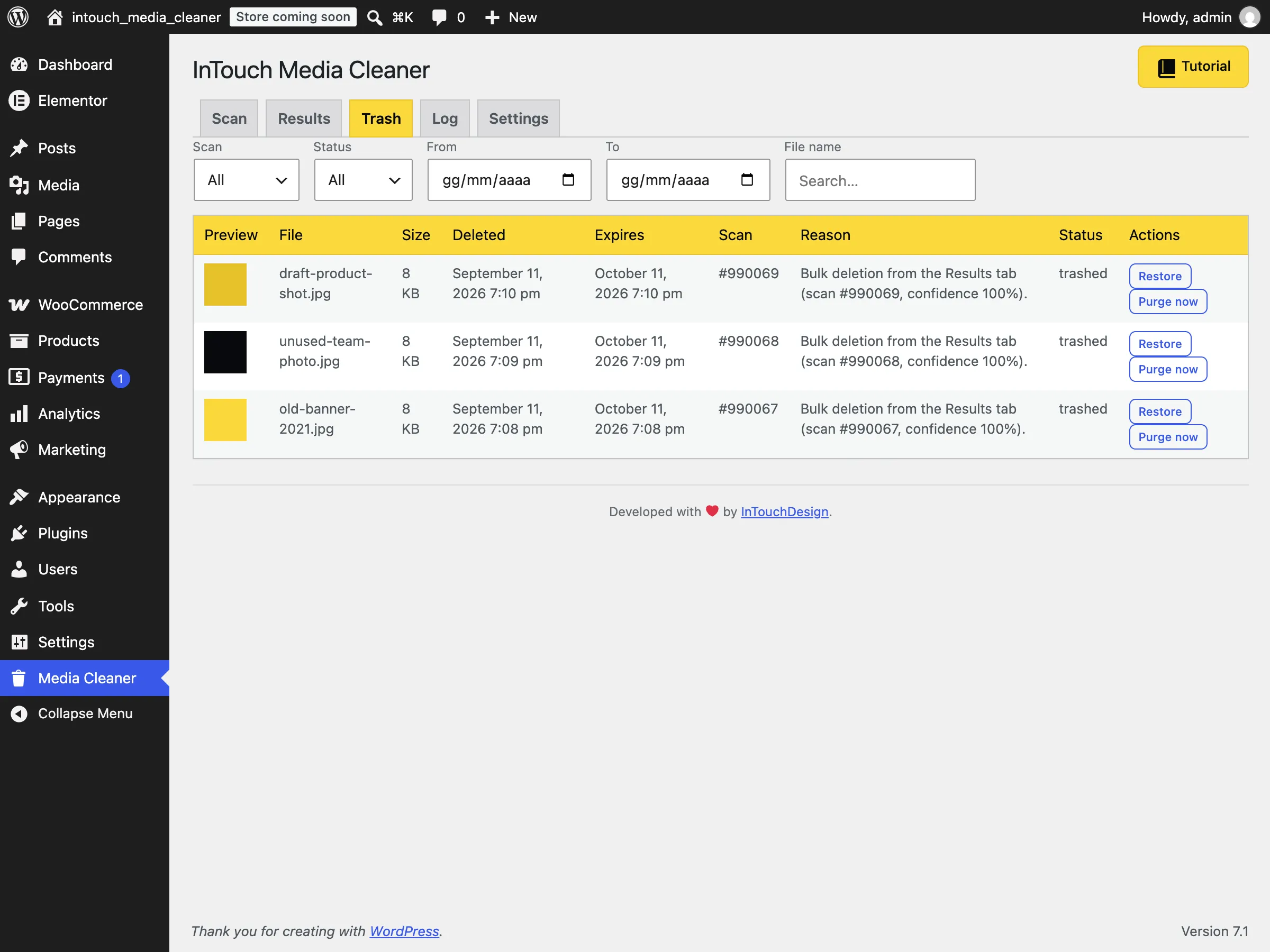
The Trash tab: expiry date, the reason it was deleted, and Restore or Purge now.
Restore brings a file back at its original attachment ID, not a new one — which is why references that used the ID, and not just a hardcoded URL, keep working after a restore.
Permanent purge — emptying the trash for real — requires typing an exact confirmation phrase, once the cooling period has passed. That’s intentionally friction-y, the same way a "type DELETE to confirm" pattern works elsewhere: a purge can’t be undone, so the interface makes sure you mean it.
A purge sends an audit e-mail to the site’s own admin address, only after files are gone for good: a manifest of exactly what was removed, so there’s always a paper trail. This can be turned off in Settings.
The confirmation step, before any of that
Before a file ever reaches the trash, the two-step confirmation dialog shows a random sample of what’s about to be deleted and why — reopening it draws a different sample, so it can’t become a rubber stamp:
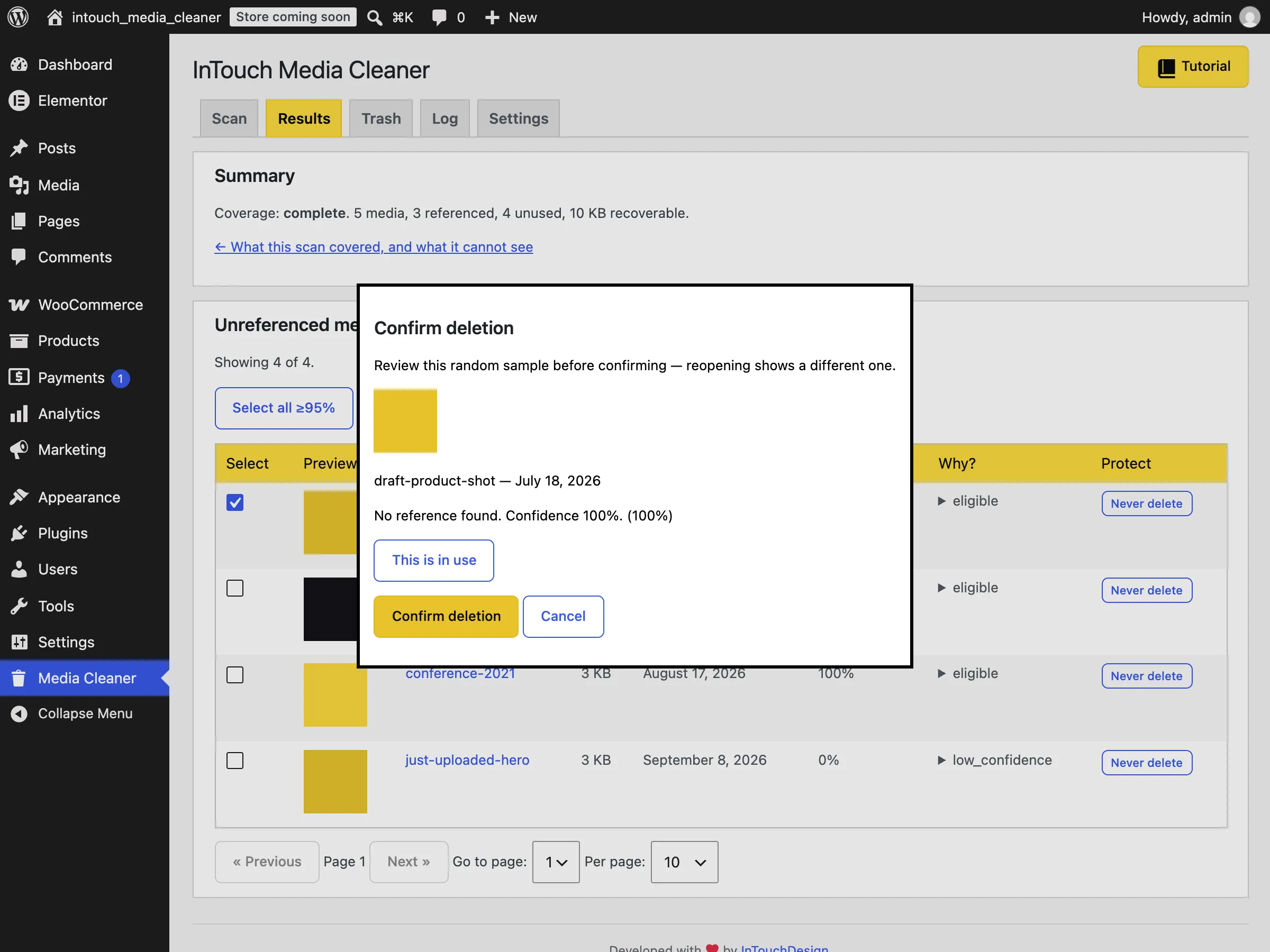
The confirmation dialog: one sampled item, its reason, and a "This is in use" escape hatch.
That This is in use button is a last-second out: if the sample turns up something you recognize as still needed, it stops the whole batch instead of just that one row.
Settings worth knowing about
Recent-upload immunity
Default: 14 daysAnything uploaded this recently is never proposed for deletion, regardless of score. Lower it if you’re testing on a low-traffic dev site where "recent" doesn’t need two weeks. Raise it on a site with a slow editorial cadence, where a file can sit unused for a month before anyone gets around to publishing the page it belongs to.
Auto-select threshold
Default: 95%The confidence floor for "Select all ≥95%". This is the number that decides what a bulk action can touch — lower it with real caution.
Scan mode
Default: SafeSafe keeps the noisy tier-D safety sweep on, which protects against custom fields the plugin doesn’t specifically know about. Aggressive turns it off and needs an explicit confirmation to enable. Recommended: safe, for anyone who isn’t sure.
Purge audit e-mail
Default: OnSends a manifest of exactly what was permanently removed to the site’s own admin address, after every purge. Can be disabled if you don’t want the e-mail.
Troubleshooting
My scan has been running a long time — is it stuck?
The scan runs in your browser tab, not in the background. Leaving the tab, letting the computer sleep, or closing it pauses the scan; it resumes from where it left off when the tab is open and active again. A "keep this tab open" notice and a progress indicator — which scanner is currently running, and for how long — stay visible while it’s active.
A batch keeps failing on the server.
This almost always means a PHP timeout or memory limit at this site’s media volume. The scan can be aborted and restarted; if it recurs, the fix is raising the server’s PHP time or memory limits, or asking your host to — not retrying forever.
Why does WooCommerce or Elementor show as degraded?
Each builder adapter declares the exact version range it was tested against — WooCommerce 3.0+, Elementor 3.0–4.2.x as of this writing. Outside that range, the adapter doesn’t guess: it reports degraded, and the coverage panel names both the detected version and the supported range.
Can I run this on a huge media library?
Yes. Batches are adaptive and resumable, so a scan on a large library just takes correspondingly longer, and can be safely left running across multiple sessions.
What’s next
More page builders — Divi, Bricks, Beaver Builder — ACF-aware field resolution, and a filesystem scan for orphaned files are planned for a future paid version. There’s no paid tier yet: everything documented on this page is what the plugin does today.